
The Clipart Gallery
Open Publisher includes a built-in Clipart Gallery with 3,403 high-quality, transparent images accessible directly from the Insert ribbon. All clipart is served as transparent PNGs and placed onto your canvas as fully movable, resizable elements.
Opening the Gallery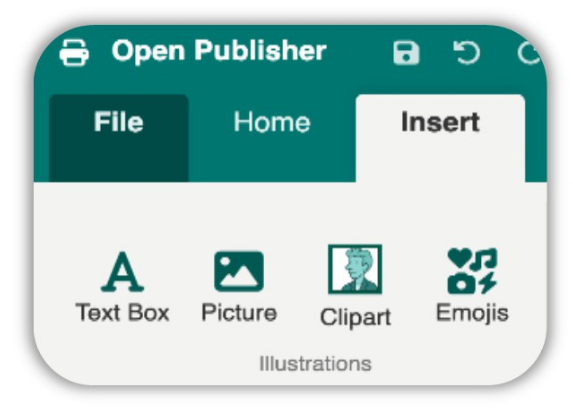
To open the Clipart Gallery:
-
Go to Insert > Clipart.
-
The gallery opens in a full-panel modal window displaying the complete library.
Searching the Gallery
A live search bar is built into the gallery header. As you type, the grid instantly filters to show only matching images. The search engine parses every image filename, strips system formatting, and generates clean human-readable names on the fly – so typing “coffee”, “arrow”, or “star” immediately narrows the gallery to relevant results. Hovering over any thumbnail shows a tooltip with the image’s clean name.
Browsing & Loading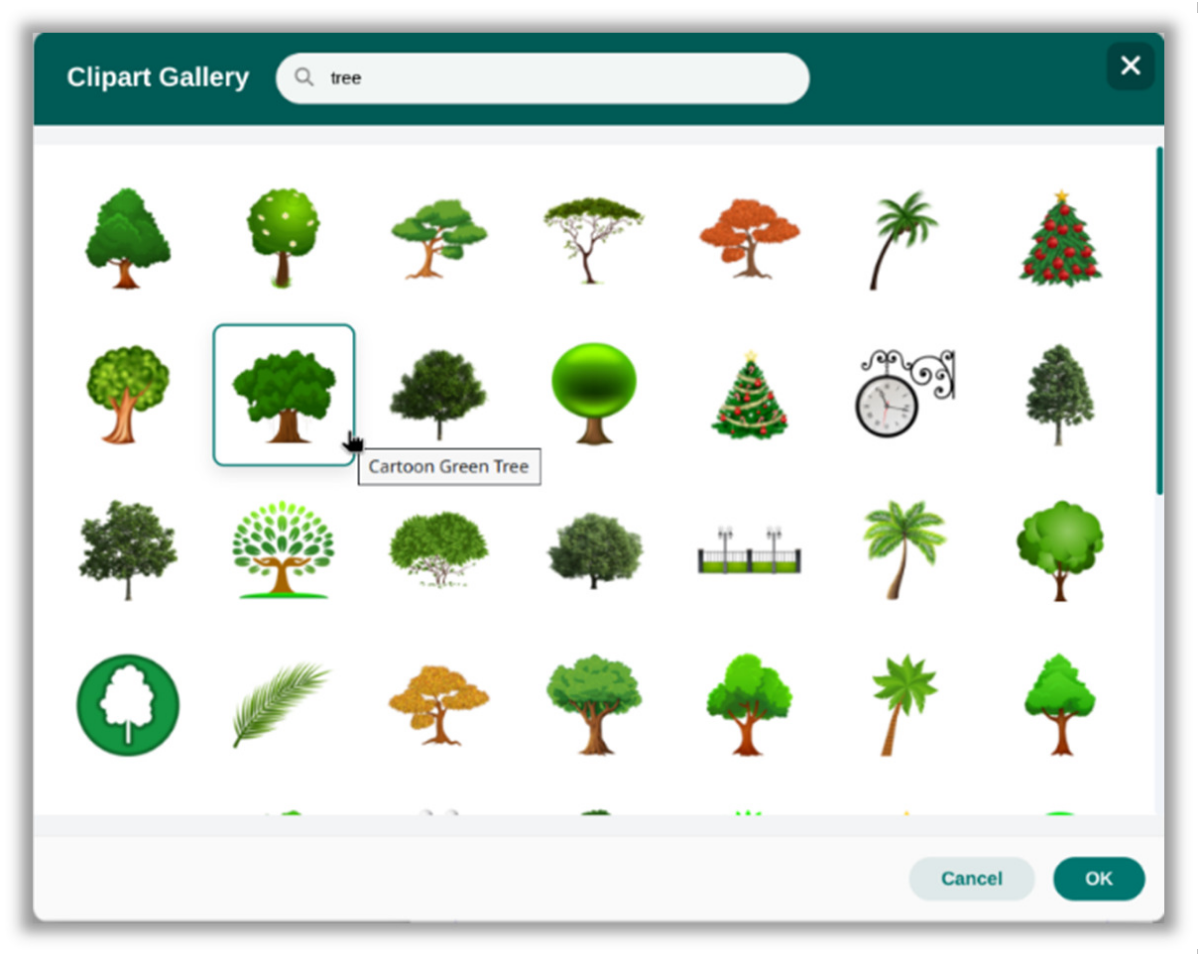
The gallery is designed to open instantly and stay fast no matter how quickly you scroll:
-
Lazy loading – Thumbnails are only fetched from the network when they scroll into view, so the gallery opens immediately regardless of its size.
-
Concurrency queue – Thumbnail fetching is limited to 5 images at a time, preventing browser overload when scrolling fast.
-
Auto-retry – If a thumbnail fails to load, the system waits 1.5 seconds and retries automatically. After two failed attempts it falls back to the full-resolution version instead of showing a broken placeholder.
-
Vision-aware queue re-sorting – The loading engine continuously tracks which thumbnails are visible on screen and re-sorts the queue so whatever you are currently looking at always loads first, no matter how fast you scroll.
-
Gallery randomisation – The gallery shuffles its 3,400+ entries every time it opens, so you see a fresh selection each session rather than the same images at the top.
Inserting Clipart
To insert a clipart image:
-
Double-click any thumbnail to insert it instantly.
-
Or single-click to select it (highlighted with a teal border), then click OK in the modal footer.
A styled “Importing Image… Please wait” overlay appears while the high-resolution file downloads. The canvas insertion engine includes the following safeguards:
-
If the server returns a 404 for a high-resolution image, the engine catches the error and automatically falls back to the thumbnail version.
-
If a network proxy intercepts the error and returns an invisible 1×1 pixel, the engine detects the anomaly by scanning the pixel dimensions and also falls back to the thumbnail – ensuring you never end up with a broken or invisible element on your canvas.
Clipart Technical Details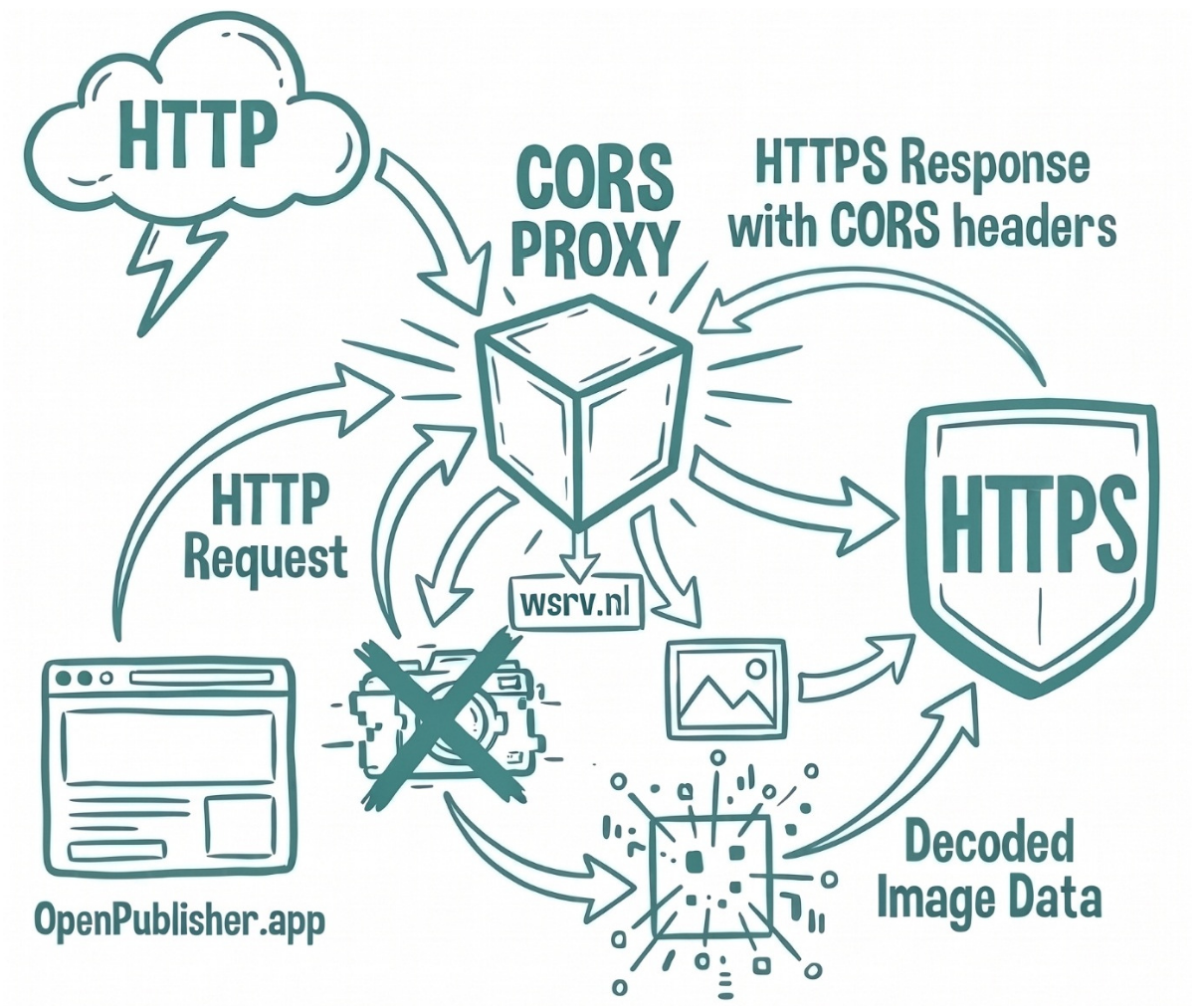
All clipart images are served as transparent PNGs via the wsrv.nl HTTPS proxy, which converts the external HTTP image library over HTTPS to bypass browser mixed-content restrictions.
The canvas insertion engine includes the following safeguards:
-
If the server returns a 404 for a high-resolution image, the engine catches the error and automatically falls back to the thumbnail version.
-
If a network proxy intercepts the error and returns an invisible 1×1 pixel (HTTP 200), the engine detects the anomaly by scanning the pixel dimensions and also falls back to the thumbnail — ensuring you never end up with a broken or invisible element on your canvas.