
Document Properties
Document Properties lets you embed descriptive metadata directly into your .opub file. This metadata travels invisibly with the document behind the scenes and can be used to identify ownership, categorise content, or provide important context for collaborators.
Whether you are working within a large team, organising a digital archive, or preparing a publication for external distribution, taking a few moments to fill out your document properties ensures your files remain searchable, professional, and properly credited.
How to Set Document Properties
Accessing and updating your file’s metadata is quick and straightforward.
-
Navigate to File > Info > Properties from the main menu, or simply click the Properties button located in the File ribbon under the Document Info section.
-
A dialogue box will appear. Fill in the available fields to best describe your document:
-
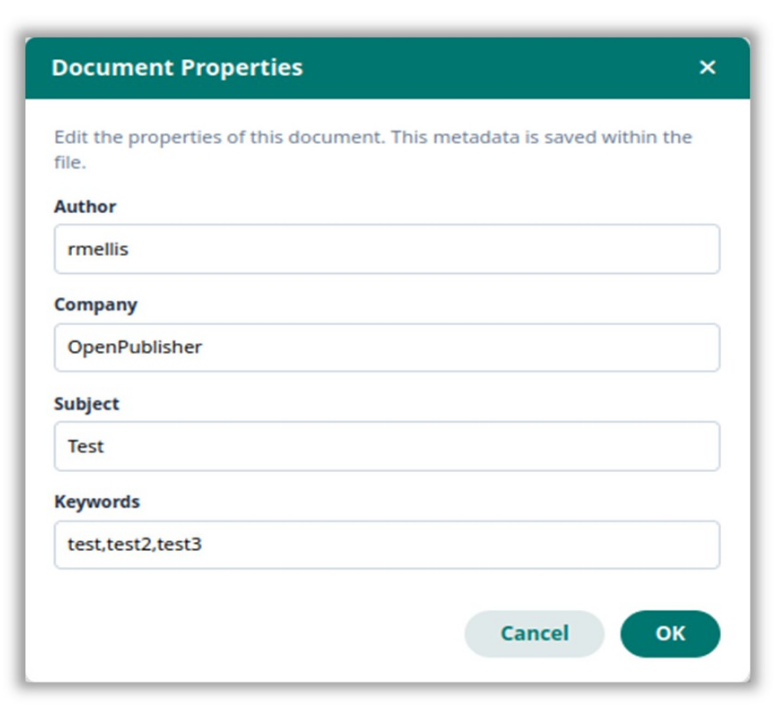
Author: The name of the individual, department, or team who created the document. If multiple people are collaborating, you can separate names with commas.
-
Company: The organisation or agency the document belongs to. Keeping this consistent helps when archiving official corporate templates.
-
Subject: A brief, high-level description of the document’s topic, purpose, or target audience (e.g., “Q3 Financial Report” or “Employee Onboarding Guide”).
-
Keywords: Specific tags or terms that help identify the document during a system search. It is best practice to separate multiple keywords with commas (e.g., budget, 2026, marketing, draft).
-
-
Click Save to apply your changes. The properties are now permanently stored within the .opub file until you decide to alter them.
Privacy & The Document Inspector
While Document Properties are completely invisible in your final design layout, this metadata travels with the file wherever it is sent. This is excellent for internal organisation, but can sometimes expose internal working details to external clients or public readers.
Note: Before sharing your publication externally, we highly recommend using the Document Inspector. Navigate to File > Info > Inspect Document to easily review, sanitise, and remove any hidden metadata, personal author names, or internal keywords you do not want recipients to see.