Page Notes
For complex multi-page documents, Page Notes let you add short custom labels to individual page thumbnails in the sidebar, making it easy to stay organised and navigate long publications at a glance.
Adding a Page Note
To add a note to a page:
-
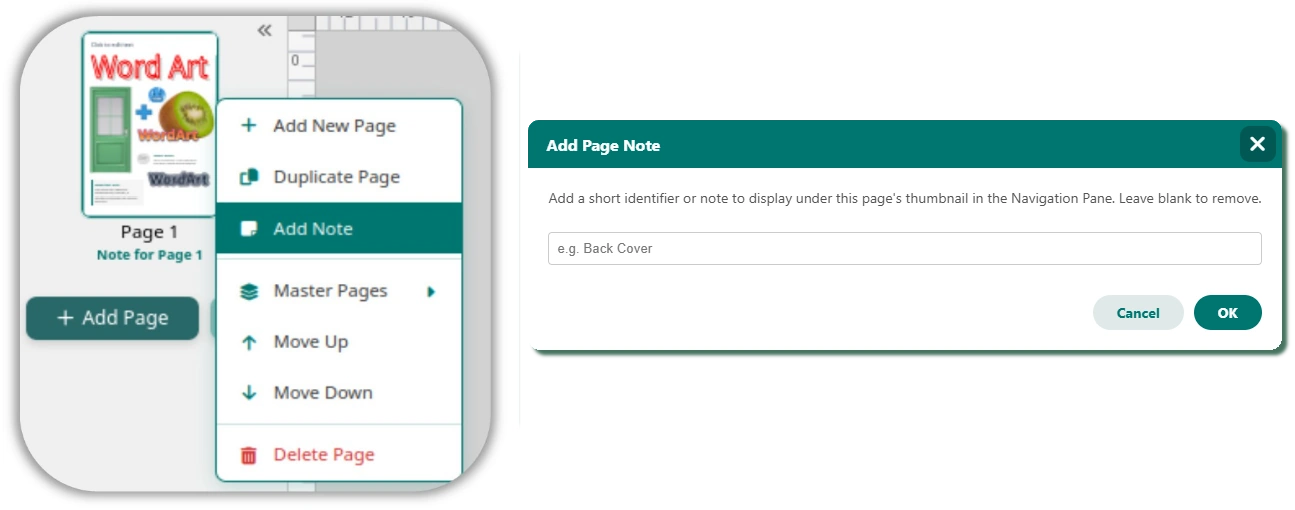
Right-click the page thumbnail in the left sidebar.

-
Select Add Note.
-
Type a short identifier (for example: “Front Cover”, “TOC”, “Advertorial”, or “Back Cover”).
-
Press Enter or click OK.
The note displays directly beneath the thumbnail in a bold teal font. To remove a note, repeat the process and leave the field blank.