
Double-Page Spreads

For magazine, booklet, and brochure layouts, Open Publisher supports Double-Page Spreads – a wide landscape canvas that represents two facing pages side by side. This lets you design across both pages simultaneously, seeing exactly how your layout will look when the publication is open in front of a reader.
Enabling Spreads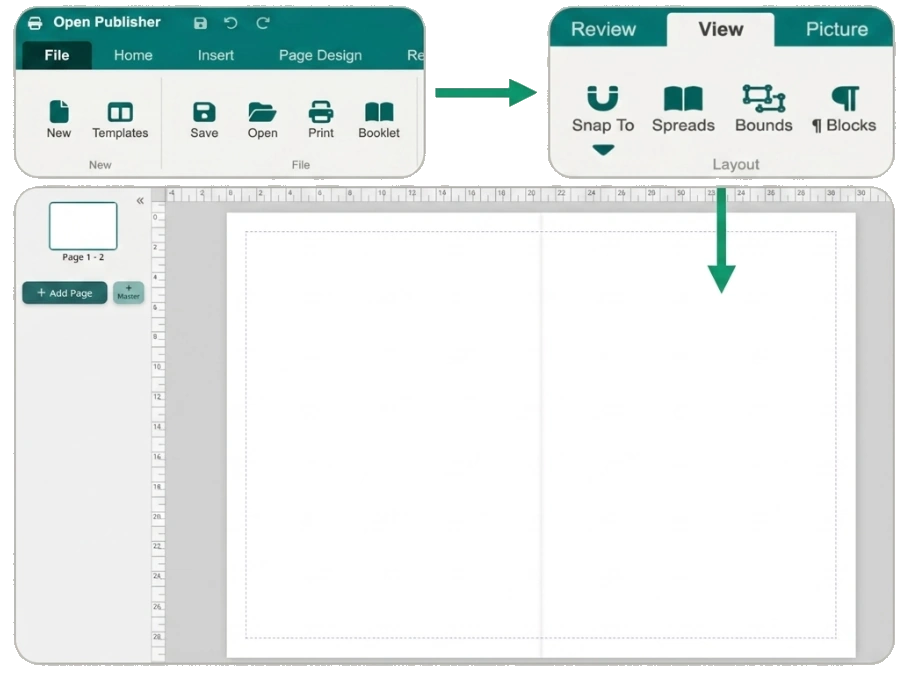
To switch to Double-Page Spread mode:
-
Go to View > Spreads, or use the Spreads toggle in the Layout ribbon.
The canvas immediately switches to a wide landscape format – 1588px wide for A4 – giving you the full two-page working area. To return to single-page view, simply toggle Spreads off using the same control.
The Book-Fold Line
A visual book-fold line appears in the centre of the spread canvas to mark the spine of the publication.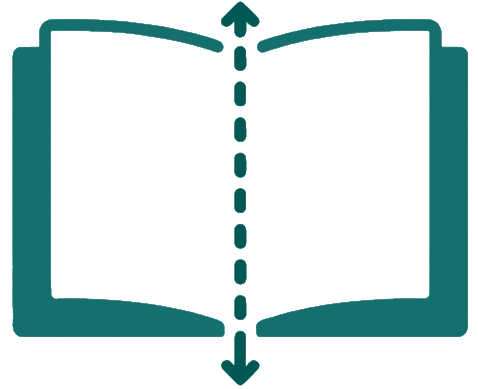
This is a purely decorative guide – it has pointer-events: none applied, meaning it cannot be selected, clicked, or accidentally moved while you are working. It will never appear in your exported PDF or print output.
Spreads-Aware Page Sizing

The page size menu is fully spreads-aware. If you switch paper size while in Spread mode, the engine automatically doubles the new dimension to preserve the double-wide layout. You can freely switch between A4, Letter, A3, and other sizes without having to manually recalculate or reset your spread canvas.
Designing Across the Spread

While in Spread mode, elements can be placed, resized, and moved freely across the entire double-width canvas. This makes it straightforward to create designs that bleed across both pages – such as a full-width hero image, a panoramic background, or a headline that spans the spine – which are then correctly split across the two pages when exported or printed.