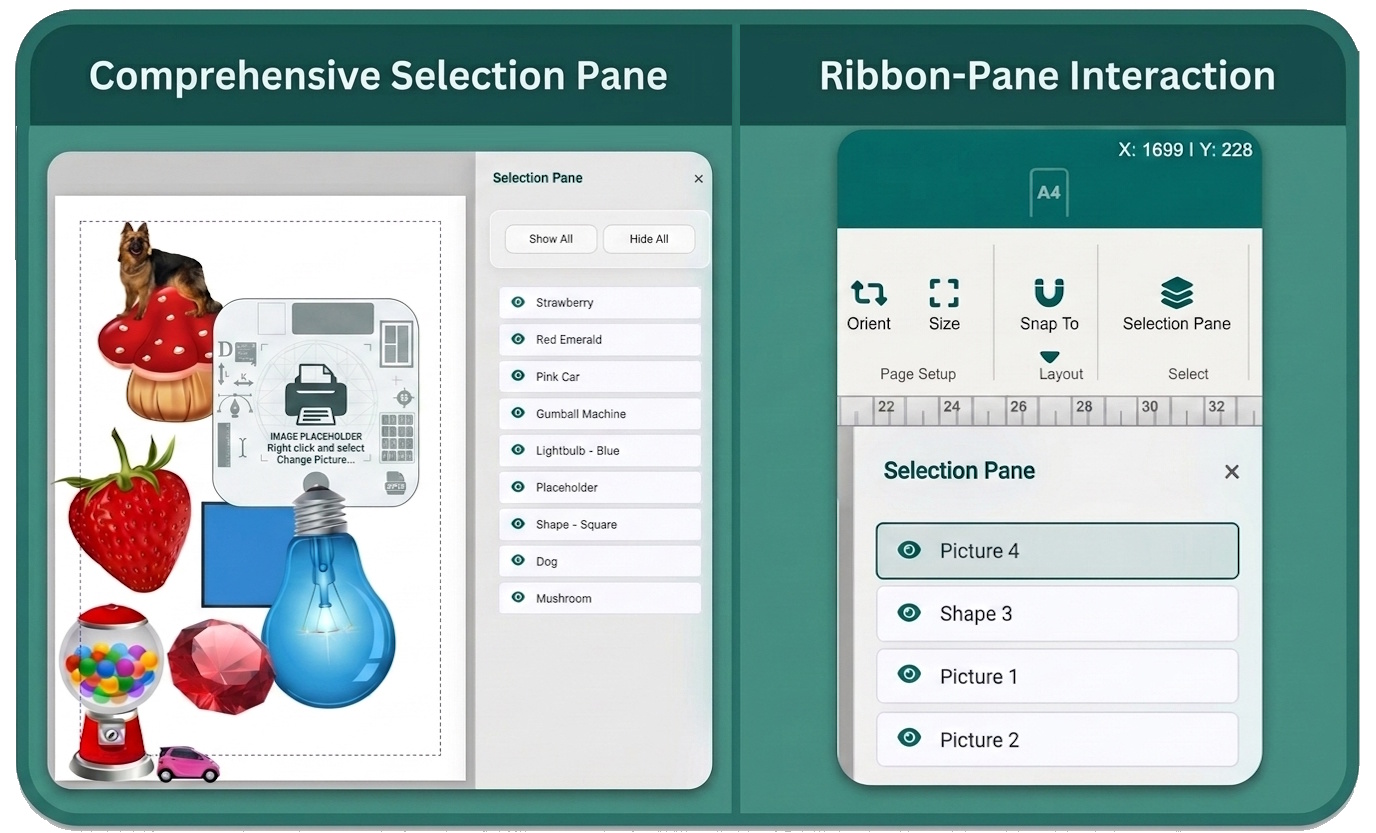
The Selection Pane
The Selection Pane gives you full visibility and control over every element on the canvas, making it easy to select, hide, or rename even deeply buried, stacked, or obscured objects.
Opening the Selection Pane
Go to Home > Select > Selection Pane. The pane slides out on the right side of the workspace and displays a scrollable list of every object on the canvas, sorted top-to-bottom to match their true visual Z-index – the topmost element in the list is the one in front on the canvas.
What You Can Do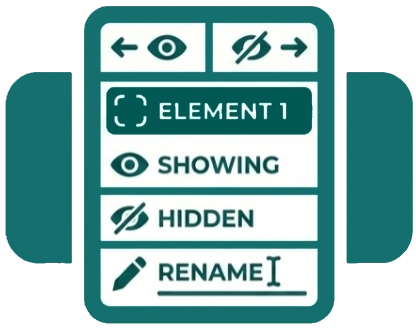
-
Select an element – Click its entry in the pane and it is immediately highlighted on the canvas.
-
Show / Hide – Click the eye icon on any entry to toggle its visibility. Hidden elements are invisible on screen and excluded from PDF exports.
-
Show All / Hide All – Use the bulk buttons at the top of the pane to toggle all elements at once.
-
Rename an element – Click the element’s name in the pane to activate an inline edit field. Type a descriptive name (for example: “Background Logo” or “Footer Bar”) and press Enter to save it.
Real-Time Updates
The Selection Pane updates in real time via a native MutationObserver – no manual refresh is needed. Add an element, delete one, or move something on the canvas and the pane reflects it instantly.