
Password Protection

Open Publisher allows you to fully encrypt any document with a password using the industry-standard AES-GCM encryption algorithm, implemented natively in the browser via the Web Crypto API. Once protected, the file saves as an encrypted binary blob rather than a readable .html or .opub structure – the content is completely unreadable to anyone who does not have the correct password.
How to Protect a Document
-

Go to File > Protect Document, or click the Protect Document button in the ribbon.
-
Enter a password and confirm it in the dialog.
-
Click Protect.
Once protected, a Protected badge appears in the top-right area of the canvas, giving you immediate visual confirmation that the active document is secured.
Opening a Protected Document
-
Open the .opub file as normal.
-
A decryption prompt immediately appears.
-
Enter the correct password. If it matches, the document decrypts and loads instantly.
-
If the password is incorrect, the document remains locked.
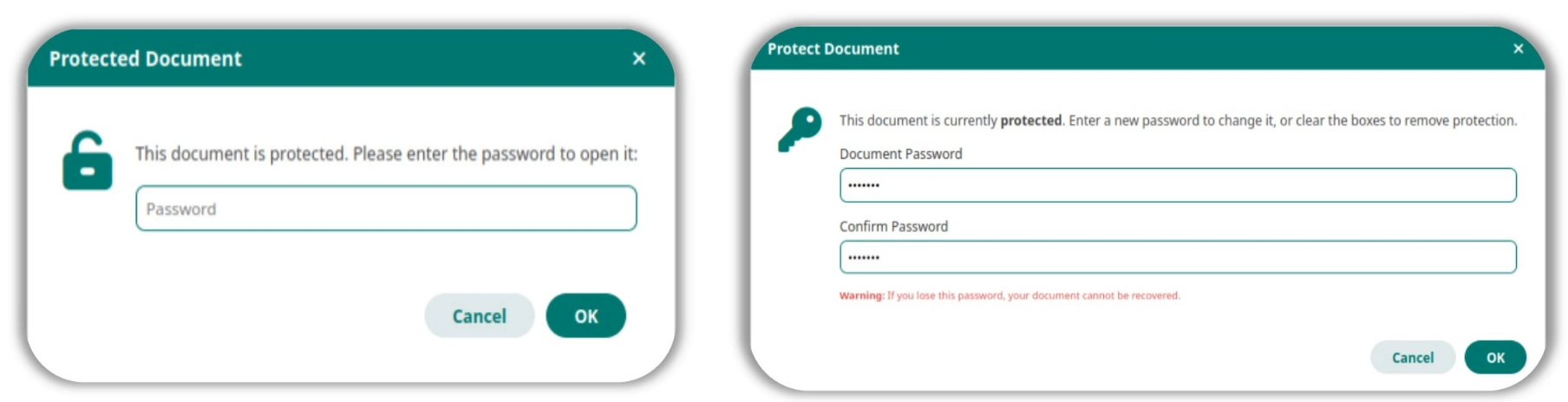
Important: No Password Recovery
There is no password recovery mechanism. If you lose or forget the password, the document cannot be recovered under any circumstances. Always keep a backup copy of the unprotected source file stored securely before applying password protection.