
Theme Studio & Backgrounds
The Theme Studio is Open Publisher’s document-wide design system, accessible from the Page Design ribbon tab. It lets you apply consistent visual styling – colour schemes and background textures – across your entire publication with a single click.
Colour Schemes
Open Publisher ships with a curated set of colour palette presets:
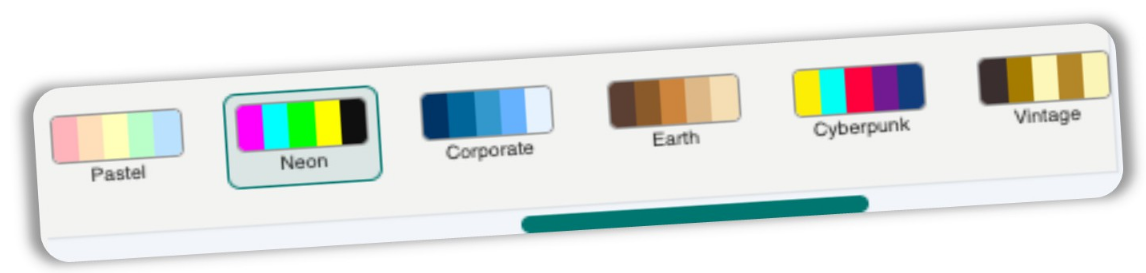
-
Classic – clean, traditional publishing tones.
-
Pastel – soft, muted hues for a gentle aesthetic.
-
Neon – vivid, high-energy accent colours.
-
Corporate – professional, restrained blues and greys.
 When a colour scheme is active, shapes, text elements, and other design objects dynamically respond by automatically updating their fills and strokes to match the active document colour language. The active scheme is highlighted in the ribbon so it is immediately obvious which palette is currently applied.
Page Background Themes

Alongside colour schemes, the Theme Studio provides a library of page background themes – solid colours, gradients, and textured patterns – that can be applied to the entire document backdrop. Simply click any swatch in the Theme Studio panel to apply it instantly.
Background themes are applied via a dedicated background layer that sits beneath all your content. Your selected theme is saved into your .opub file and loads automatically when you re-open the document. Backgrounds applied through the Theme Studio render correctly in all export formats, including booklet printing with accurate gradient reproduction.
Tip: If you need more precise control over individual background colours or want to apply a custom solid colour, use the Format Background dialog (see below).
Format Background Dialog
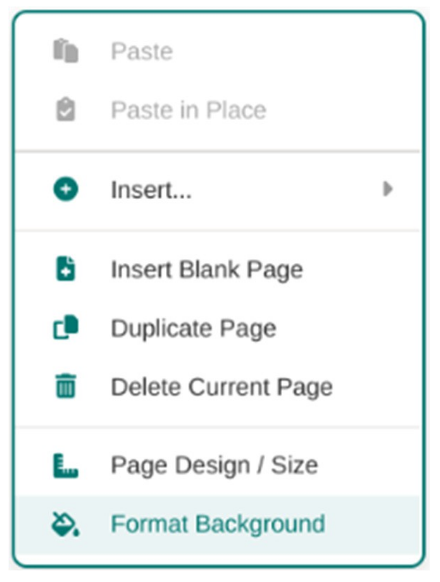
For direct, one-off background colour control on the current page, use the Format Background dialog. Access it by: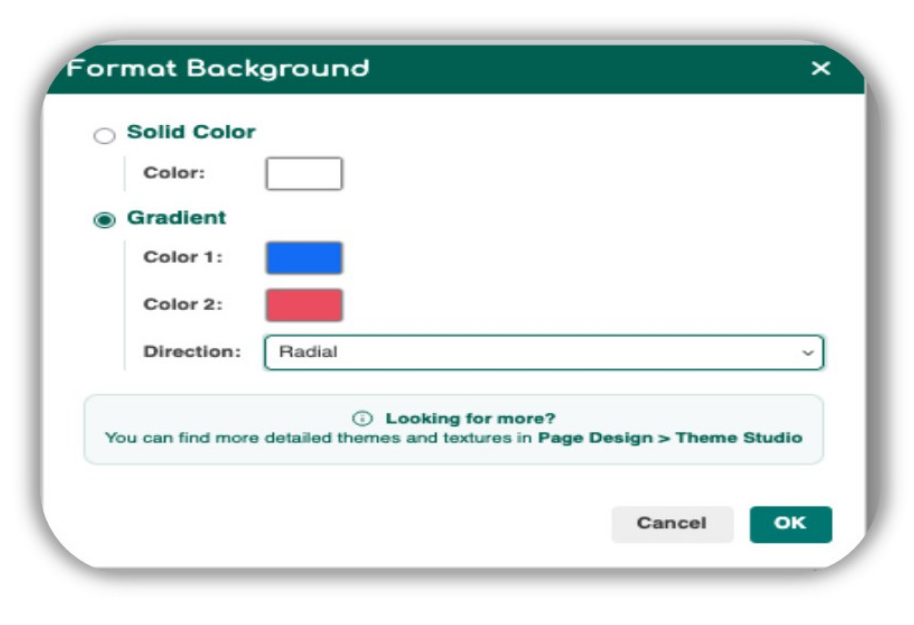
-
Right-clicking anywhere on the page canvas and selecting Format Background.
-
Using the workspace context menu or the ribbon.
 The redesigned dialog features the application’s signature dark-teal header, cleanly styled radio buttons for selecting background type (solid colour, gradient), custom colour inputs, and a tip box directing you to the Theme Studio for advanced textures and patterns.
Gradients applied via Format Background render correctly in all print modes, including Booklet printing.
Ignoring the Theme Background on Specific Pages
Separately from the Master Page elements, Open Publisher’s Theme Studio can apply a decorative background to all pages simultaneously. If you need a single page (such as a back cover or a blank insert) to have a white/plain background while the rest of the document keeps its theme background, use the Ignore Theme feature.
To exempt a page from the theme background:
-
Navigate to the page you want to exempt.
-
Open the Theme Studio ribbon (under Page Design).
-
Click the Ignore Theme button (displayed with a teal cancel icon, next to the Remove Theme button).
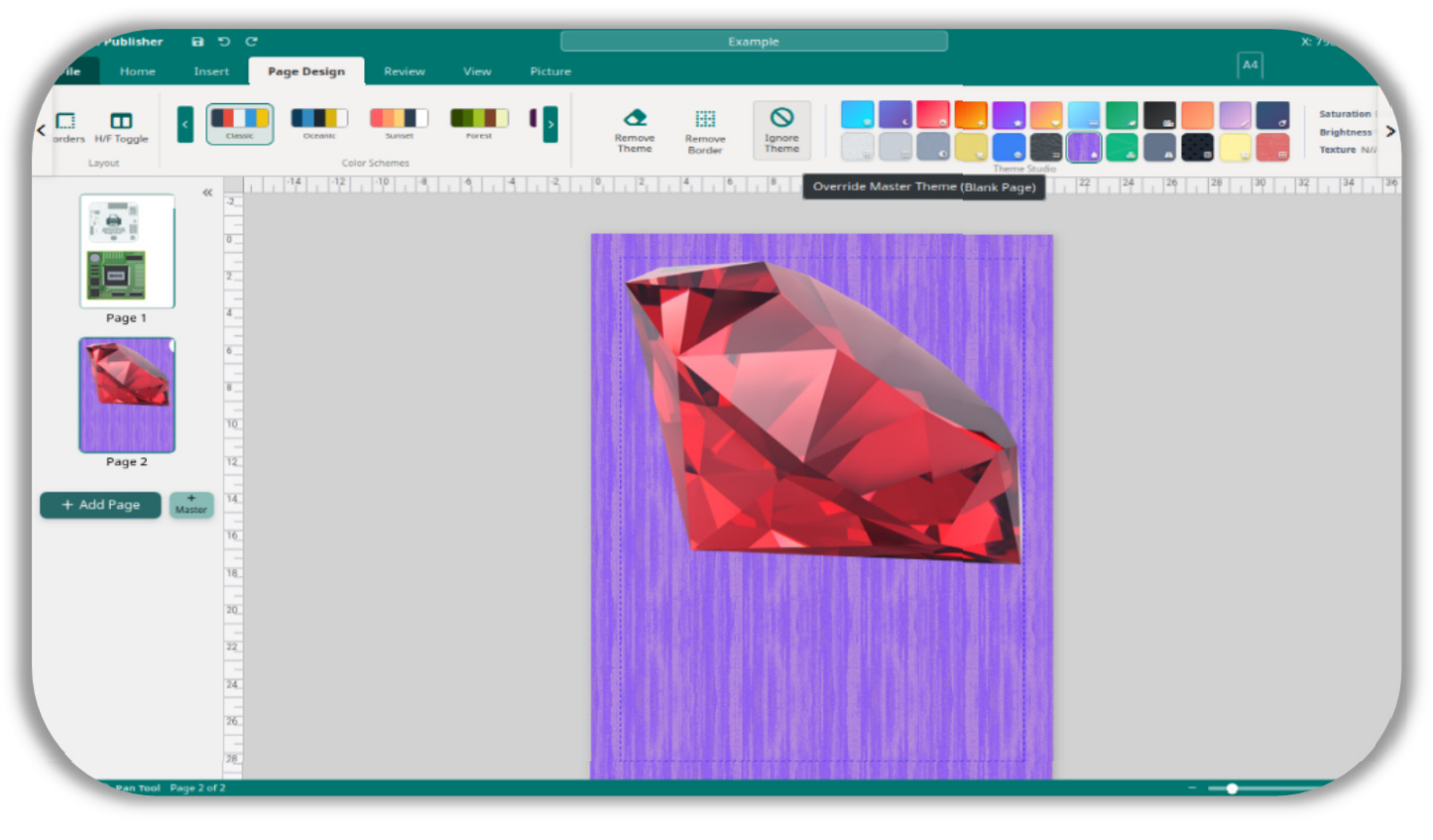
The background on that page immediately turns white. All other pages retain their theme background intact. This override is fully supported in the standard print engine, the booklet imposition engine, and the PDF export pipeline.