
Formatting & Managing Cells
Once your table is inserted, Open Publisher provides a comprehensive suite of tools for precise cell manipulation, border styling, and data management.
Cell Resizing (Cross-Browser)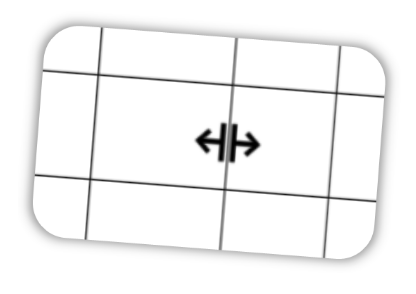
Open Publisher ships with its own custom Table Cell Resizer that works reliably across Chrome, Safari, Firefox, and Edge, bypassing the browsers’ inconsistent native implementations.
To resize a row or column:
-
Hover your mouse over any vertical or horizontal dividing line inside the table. The cursor changes to a resize arrow (col-resize or row-resize).
-
Click and drag to adjust the cell width or height. The boundary follows your cursor precisely.
Key behaviours:
-
Dimension locking: The moment you grab a border to resize it, all columns and rows in the table have their widths and heights locked to absolute pixel values. This prevents the browser’s layout engine from implicitly resizing other cells and causing unpredictable shifts.
-
Zero-sum resizing: Shrinking column A by 10px and increasing column B by 10px moves the boundary cleanly while leaving all other columns unchanged.
-
Smart drag detection: Clicking the exact border engages the resizer. Clicking in the middle of a cell and dragging engages the multi-cell selection highlighter. Both modes coexist without conflict.
-
Element drag: Hovering over the outer edge of the table (not an inner divider) shows a move cursor, letting you drag the entire table around the page.
Merge & Split Cells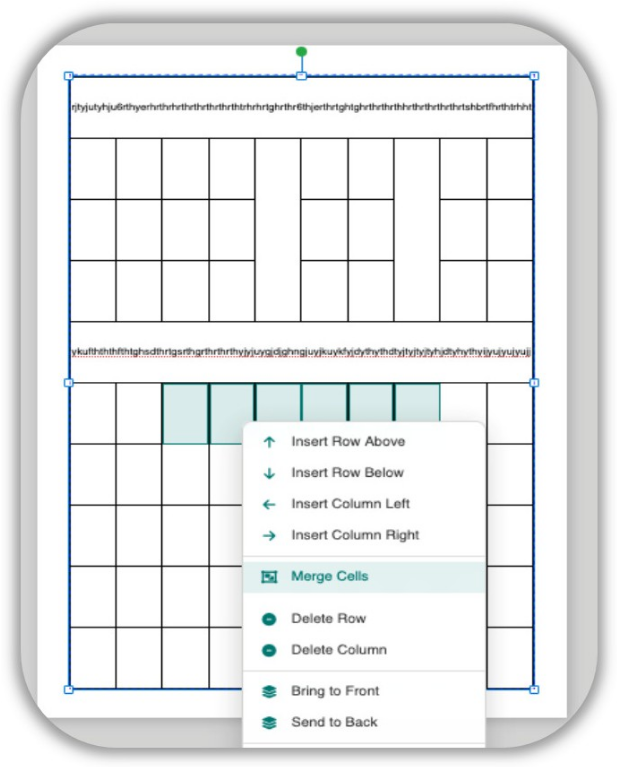
Merge Cells
-
Click and drag across the cells you want to merge to highlight them.
-
Right-click anywhere within the highlighted boundary.
-
Select Merge Cells from the context menu.
The cells collapse into one expanded cell. If the cells contained text, only non-empty cells contribute their content to the merged result – empty cells ( , whitespace, <br>) are stripped to prevent the merged cell from expanding unexpectedly.
Split Cells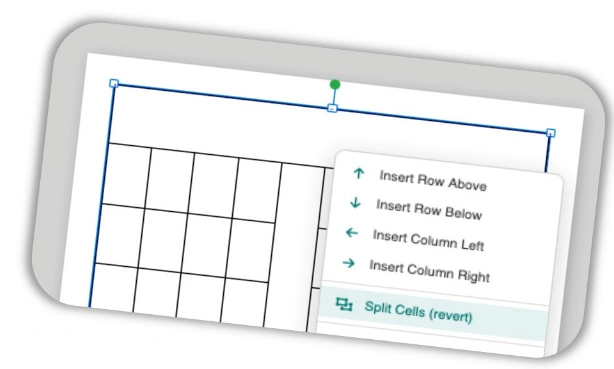
To split a previously merged cell back into its original grid structure:
-
Right-click inside the merged cell.
-
The context menu detects the rowspan/colspan attributes and offers Split Cells (revert).
-
Click it. The merged cell immediately pops back into the individual rows and columns it had absorbed, with its layout perfectly restored.
Distribute Rows & Columns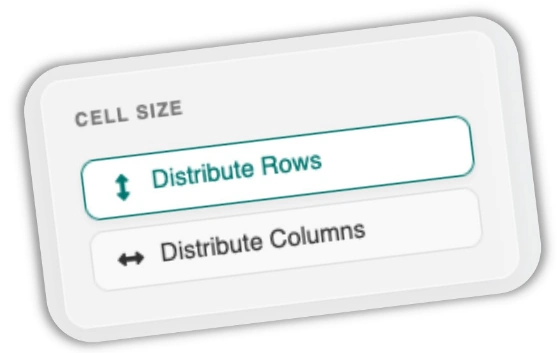
The Table Layout sidebar contains Distribute Rows and Distribute Columns buttons for making multiple rows or columns exactly equal in size.
-
Full-table distribution: Click anywhere inside the table (with no specific cells highlighted) and press Distribute Columns. All columns in the table are instantly resized to equal widths. Distribute Rows does the same for heights.
-
Targeted distribution: Highlight a specific subset of cells by click-and-dragging across them, then press Distribute Columns. Only those selected columns are redistributed proportionally – the rest of the table is completely untouched.
All redistribution uses sub-pixel accuracy and freezes widths/heights to absolute pixel values to prevent unexpected layout shifts.
Cell Margins (Padding)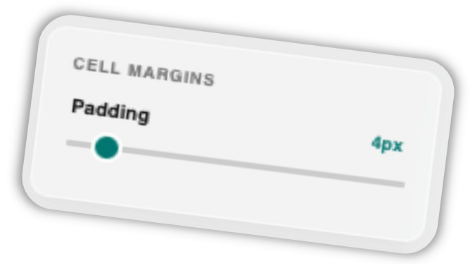
The Table Layout sidebar includes a Cell Margins slider (range: 0 – 50px) that controls the internal padding – the whitespace between your text and the cell’s borders.
-
Universal padding: Clicking anywhere in the table (without specific cells highlighted) and adjusting the slider applies padding uniformly across all cells.
-
Targeted padding: Highlight specific cells first, then adjust the slider to apply padding only to those cells.
-
The slider reads the padding of the currently active cell when you click into it, so the control always reflects the real current state.
Border Thickness & Colour
The Table Design ribbon provides full control over table borders.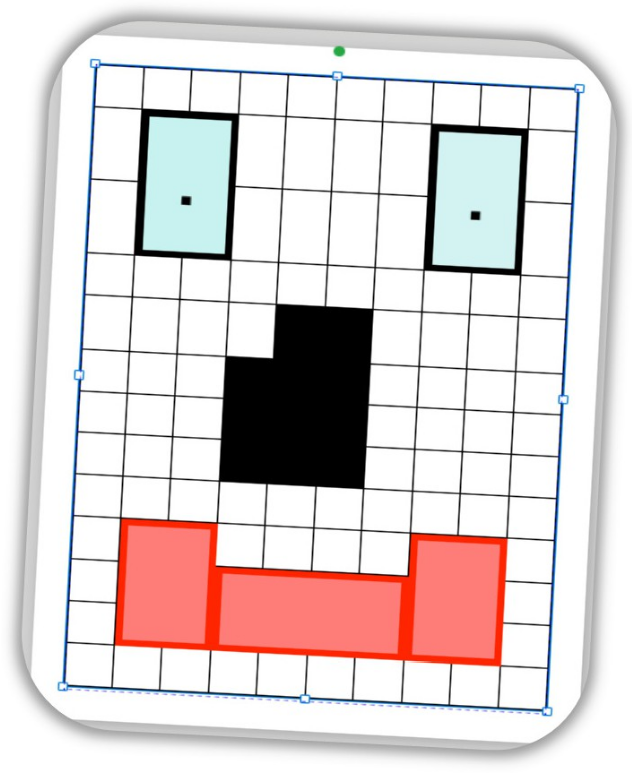
Targeting: Open Publisher uses a hyper-accurate targeting system:
-
Multi-cell selection: Select multiple cells by dragging, then apply a border colour or thickness to all selected cells at once.
-
Single cell: Click into one cell so the cursor is blinking – changes apply only to that cell.
-
Whole table: Click the outermost edge of the table without focusing a cell – changes apply to the entire table.
-
Maximum thickness: The border thickness slider and spinner accept values up to 64px, allowing you to create bold, ultra-thick grid lines for design purposes.
-
Colour: Use the colour picker in the Table Design ribbon to apply any colour to selected cell borders.
All changes are enforced via explicit borderWidth and borderStyle: solid CSS to guarantee correct rendering regardless of border-collapse state.
Clear Cell Text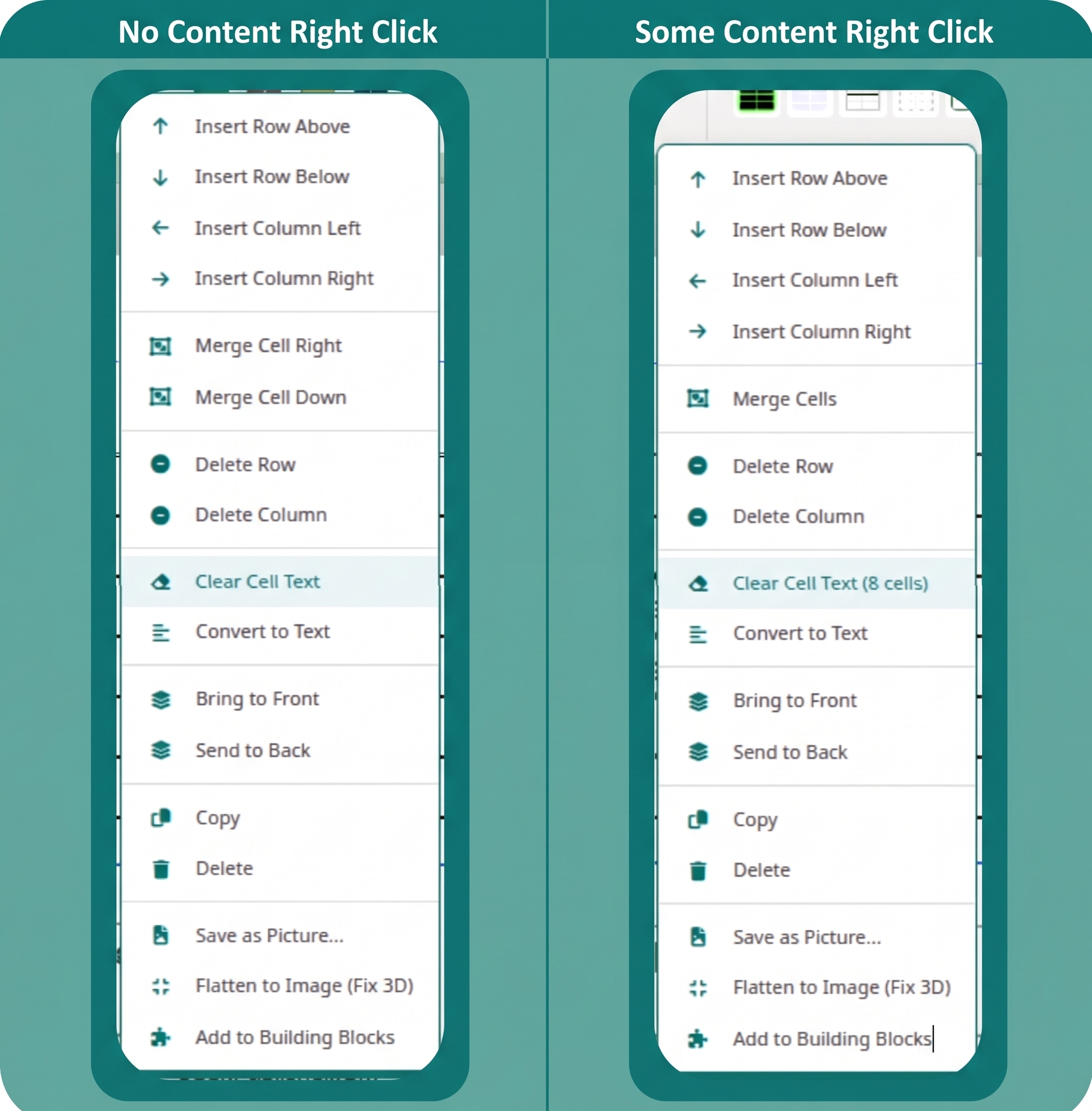
To clear the text content from one or more cells without deleting the cells themselves:
-
Right-click inside a cell (or select multiple cells first).
-
Choose Clear Cell Text from the context menu.
When multiple cells are selected, the menu option dynamically shows the count: e.g., “Clear Cell Text (4 cells)”. The cells remain structurally intact and fully editable after clearing. The action is registered in the undo history, so Ctrl+Z will restore the cleared text immediately.
Line Spacing in Tables
The Spacing group within the Table Design ribbon includes the same Line Spacing button available for text boxes. Select one or more cells and click it to set an exact point value for the line height of text within those cells, giving you the same precise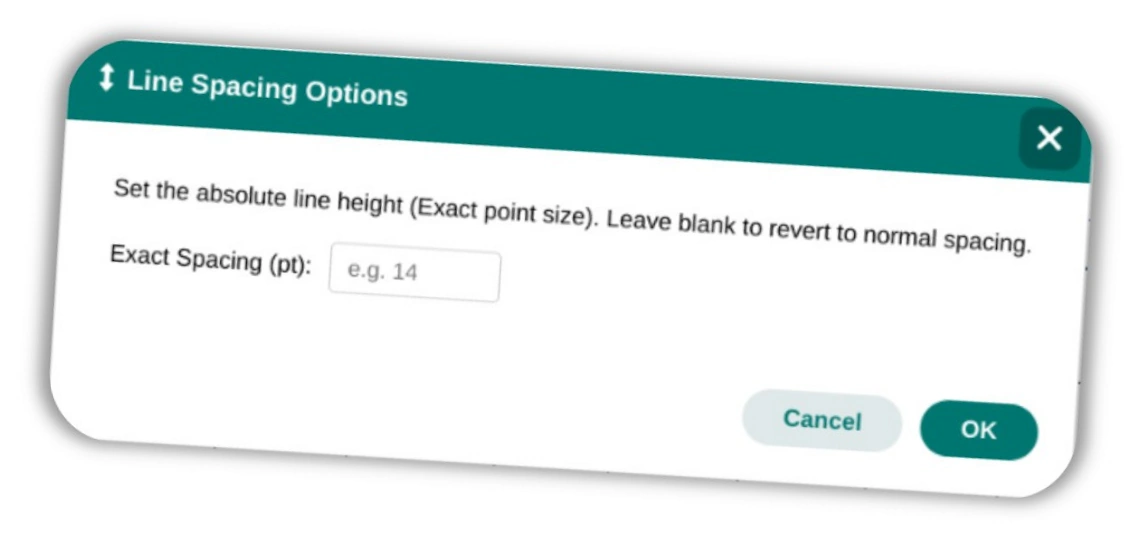
typographic control available in text boxes.
Convert Table to Text
If you need to repurpose structured table data as free-flowing paragraph text, use the Convert Table to Text tool: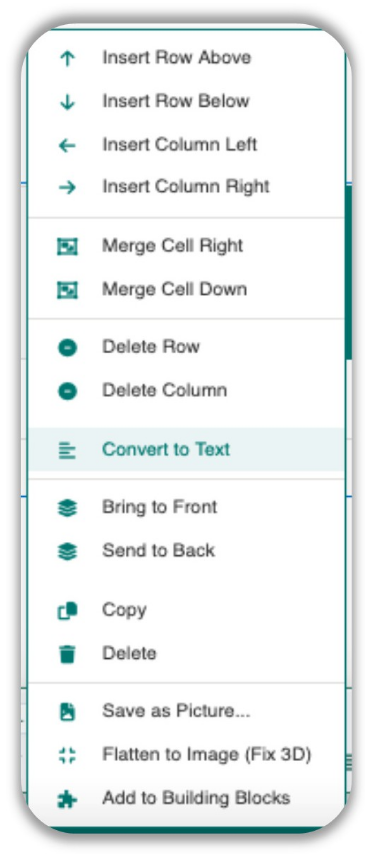
-
Select the table (click its outer edge).
-
Access Convert Table to Text from either the Table Design ribbon or the table’s right-click context menu.
-
A dialog appears asking how the extracted text should be separated: Tabs (each cell separated by a tab character), Commas (CSV-style output), Paragraph marks (each cell on its own line), or Custom (type any string to use as the separator).
-
Click OK. The table grid is removed, the cell data is extracted with your chosen separator, and the result appears as a standard, editable text box in the same location.
The conversion preserves the element’s resize handles and rotation control. The active ribbon automatically transitions from Table Design to Text Box Tools for a seamless editing handoff.