
Managing Pages
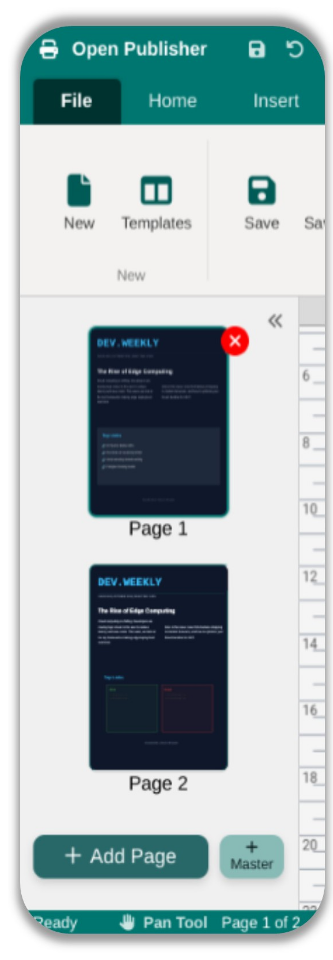
Open Publisher makes it easy to structure your document exactly as you need it, whether you are designing a single-page flyer or a multi-page booklet.
 Adding Pages

New pages can be added to your document in several ways:
-
Click the Add Page button at the bottom of the left-hand Navigation Pane.
-
Right-click the blank grey area of the Navigation Pane and choose Insert Page from the context menu.
-
Right-click anywhere in the workspace background (outside the page canvas) and choose Add New Blank Page.
Duplicating, Moving, and Deleting Pages
 Right-clicking on any page thumbnail in the Navigation Pane opens a context menu with the following page management options:
-
Duplicate Page — creates an exact copy of the selected page and inserts it directly after it.
-
Move Page Up / Move Page Down — shifts the page one position in the document order.
-
Delete Page — removes the page permanently.
Page Notes
For larger documents, it can be helpful to label individual pages so they are easy to identify without clicking into them. The Page Notes feature lets you attach a short custom identifier to any page.

-
Right-click a page thumbnail and select Add Note.
-
Type a short label (e.g., Front Cover, TOC, or Back Cover).
-
The note appears directly beneath the page thumbnail in a bold, teal-coloured font.
Note: Page Notes are purely for your own organisational use within the editor; they do not affect printed output or exported files.
Auto Page Numbering
 For longer documents, Open Publisher provides dynamic page numbering. Navigate to the Insert ribbon tab and click Page Number. An element is inserted that automatically displays the correct number and updates itself as you add, remove, or reorder pages in your document.