
The Dashboard
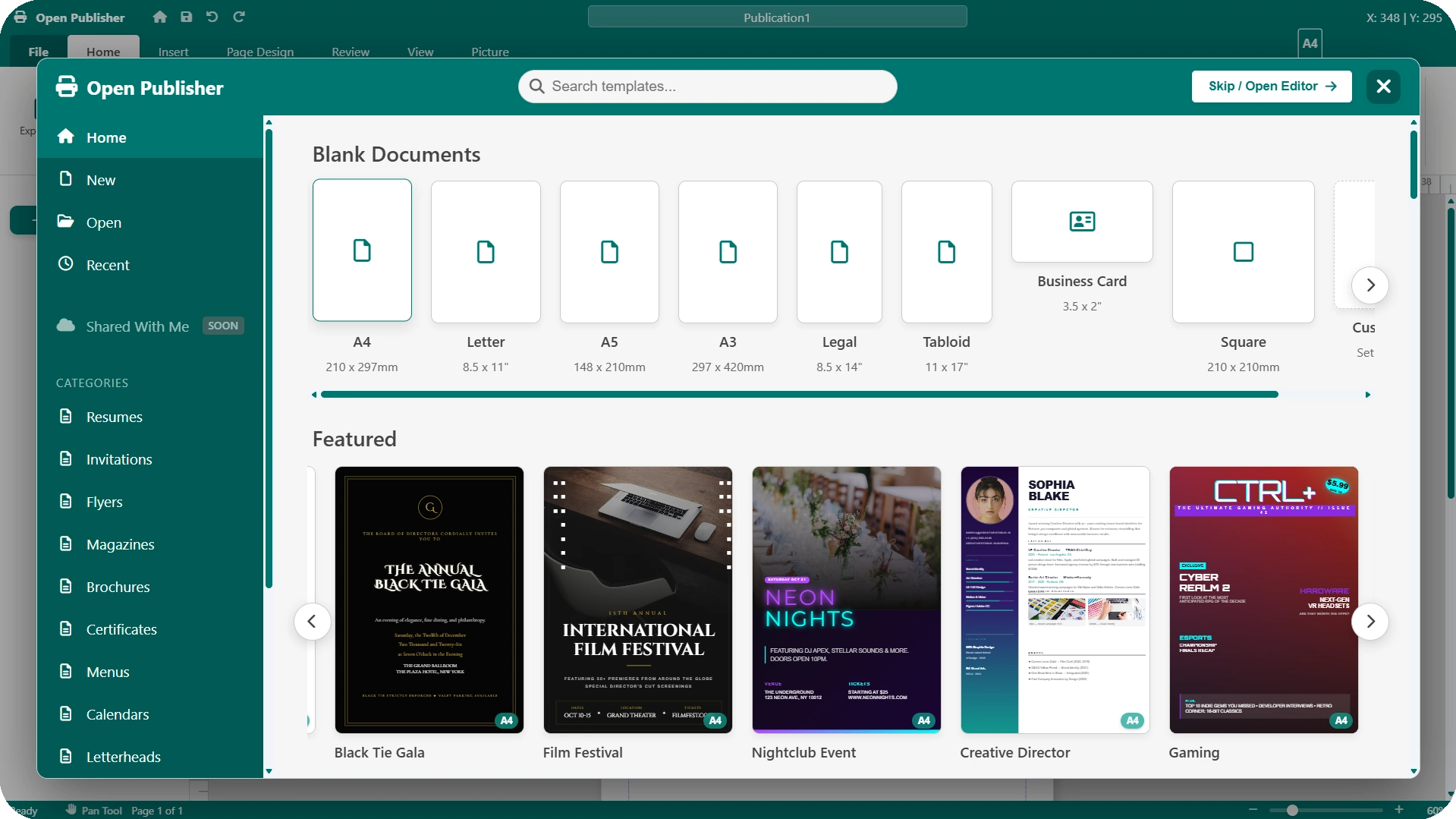
When you open Open Publisher, the Dashboard appears at Startup as a large, centred modal window giving you instant access to your template library, recent work, and new document creation – all before you touch the editor. It can also be reopened at any time without restarting the application.
Opening the Dashboard
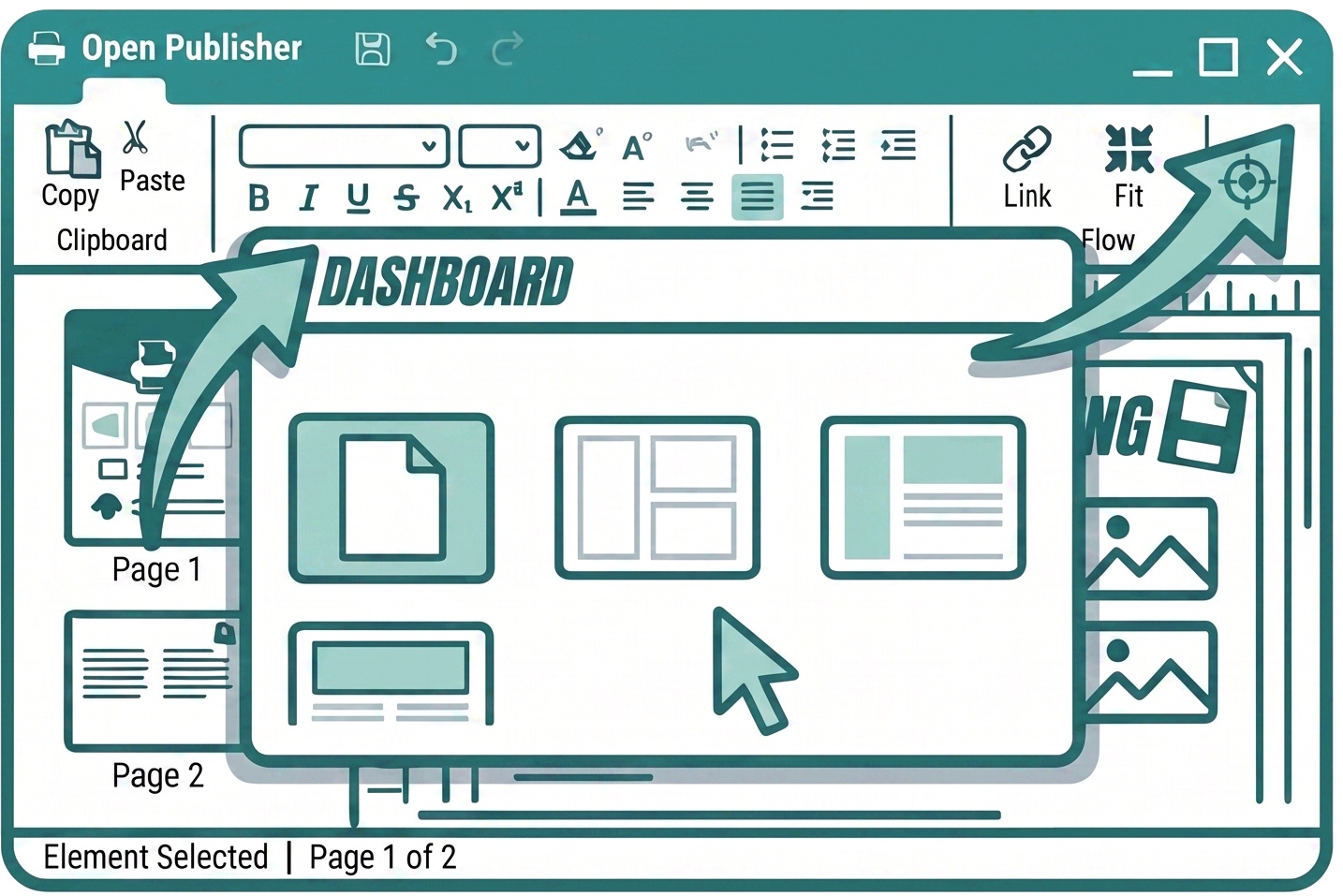
The Dashboard opens automatically every time Open Publisher loads. If you close it and need to return to it later, you can reopen it at any time via File > New > Dashboard from the ribbon – even while you have a document open.
This allows you to browse templates or start a new project without closing your current work.
A Draggable Modal Window
The Dashboard is a 95% full-screen draggable modal window rather than a rigid full-screen overlay. Click and drag the Dashboard header to move the entire window around your screen, letting you peek at the editor workspace beneath it. This gives you spatial context – you can see your existing document waiting underneath while you browse templates.
Browsing Templates
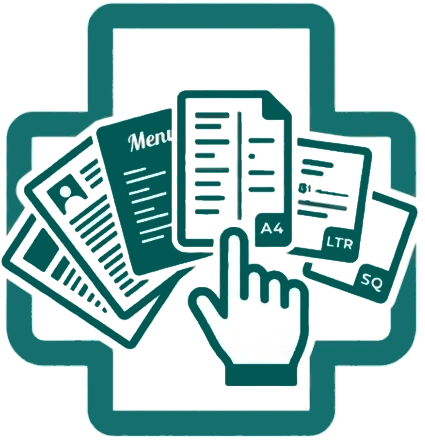
The Dashboard provides access to a library of 250 premium templates spanning categories including Resumes, Flyers, Menus, Certificates, Business Cards, Magazines, Invitations, and more. Each template thumbnail displays a page size badge in the bottom-right corner, showing you the format (A4, Letter, Square, 1080p, etc.) at a glance before loading it.
The Featured section at the top of the Dashboard showcases 12 hand-picked, top-tier templates – including designs such as Executive Summary, Luxury Wedding, and Film Festival – ensuring
you are immediately presented with the platform’s finest work.
Starting a New Document
To begin with a blank canvas, click the Skip / Open Editor button. This dismisses the Dashboard and opens a fresh blank document in the editor immediately. The button is styled as a bright white button with teal text and is always prominently visible in the Dashboard header.
Closing the Dashboard

The Dashboard features a smart close button in the top corner that behaves differently depending on your situation:
-
Cold start (no document open) – Clicking the close button generates a fresh blank A4 page and takes you straight into the editor, identical to pressing Skip.
-
Active session (document already open) – Clicking the close button dismisses the Dashboard modal and safely returns you to your existing document without overwriting or disrupting your work.
Auto-Close on File Drop
If you drag and drop an .opub file into the application while the Dashboard is still open, Open Publisher loads the file in the background and automatically closes the Dashboard the moment the document finishes rendering – taking you straight into your file without any manual dismissal needed.
Theme Compatibility
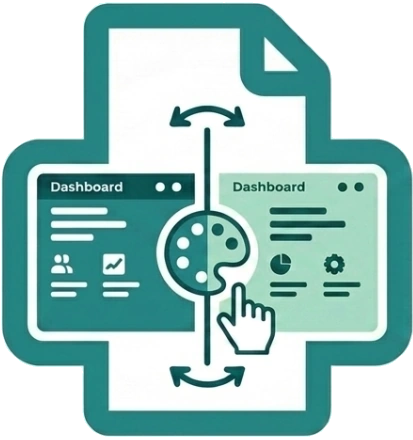
The Dashboard header is styled with Open Publisher’s signature teal green and white. When a high-brightness UI theme is active (such as Snapchat Yellow), the Dashboard intelligently adapts – flipping the header text, logo, and buttons to dark colours so everything remains clearly legible regardless of which theme you are using.