
Advanced Shape Tools
Beyond standard formatting, Open Publisher includes a set of advanced shape tools that give you precise creative control – from morphing shapes into entirely custom polygons to professional hollow arrow styles for diagrams and flow layouts.
Custom Shape Points Editor

The Edit Shape Points tool lets you manipulate the individual vertices of any standard shape, morphing it freely into a completely custom polygon.
To edit shape points: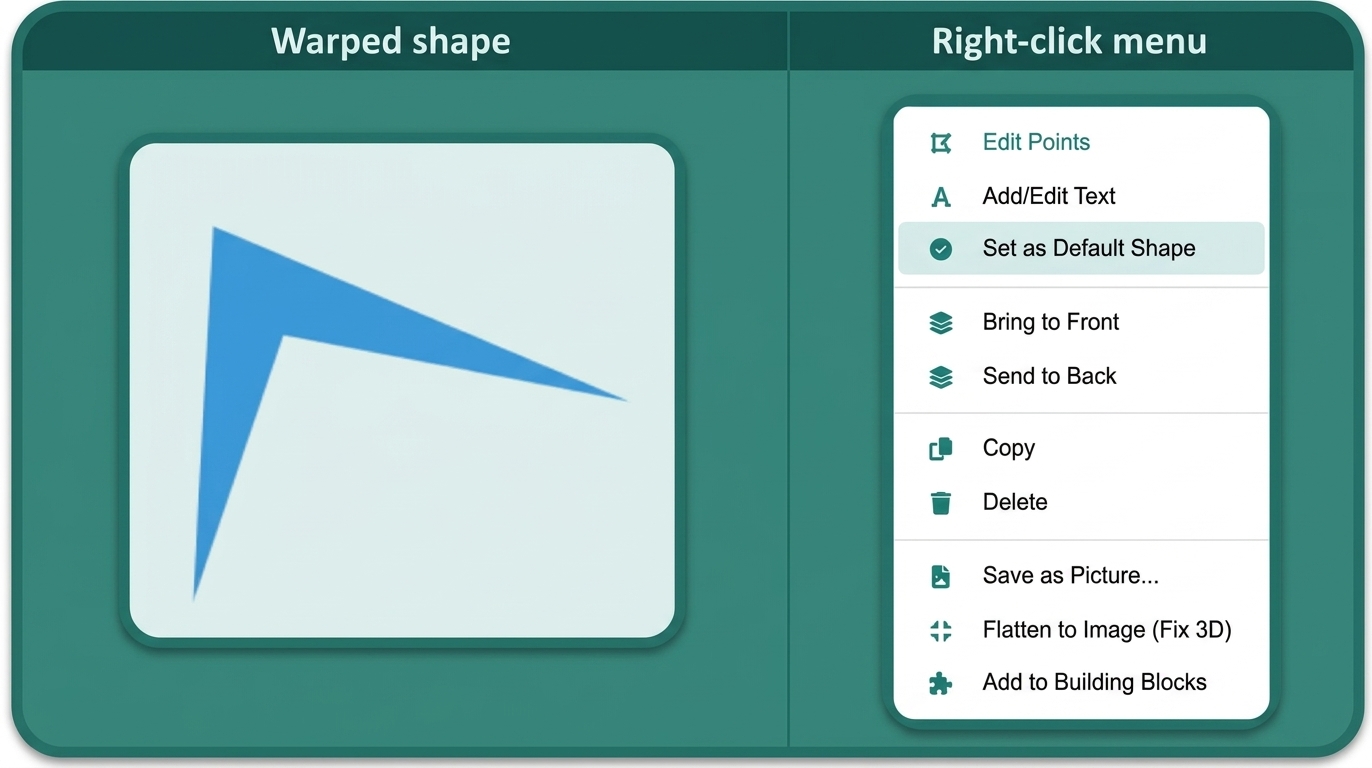
-
Right-click a shape on the canvas.
-
Select Edit Points from the context menu.
-
Draggable control vertices appear at the corners of the shape.
-
Drag any vertex to reshape the polygon – the shape updates in real time using CSS clip-path for the new boundary.
-
Click away from the shape to finish editing.
The editor supports elements that have been 3D rotated or transformed, allowing vertex manipulation even on skewed shapes.
Note: Because browsers discard clip-path CSS properties during printing, the moment you finish editing and click away, Open Publisher automatically traces the drawn points onto an HTML5 canvas, exports a transparent PNG, and swaps the DOM element with the baked image. This guarantees 100% print and PDF reliability without any manual intervention.
Hollow Arrow Styles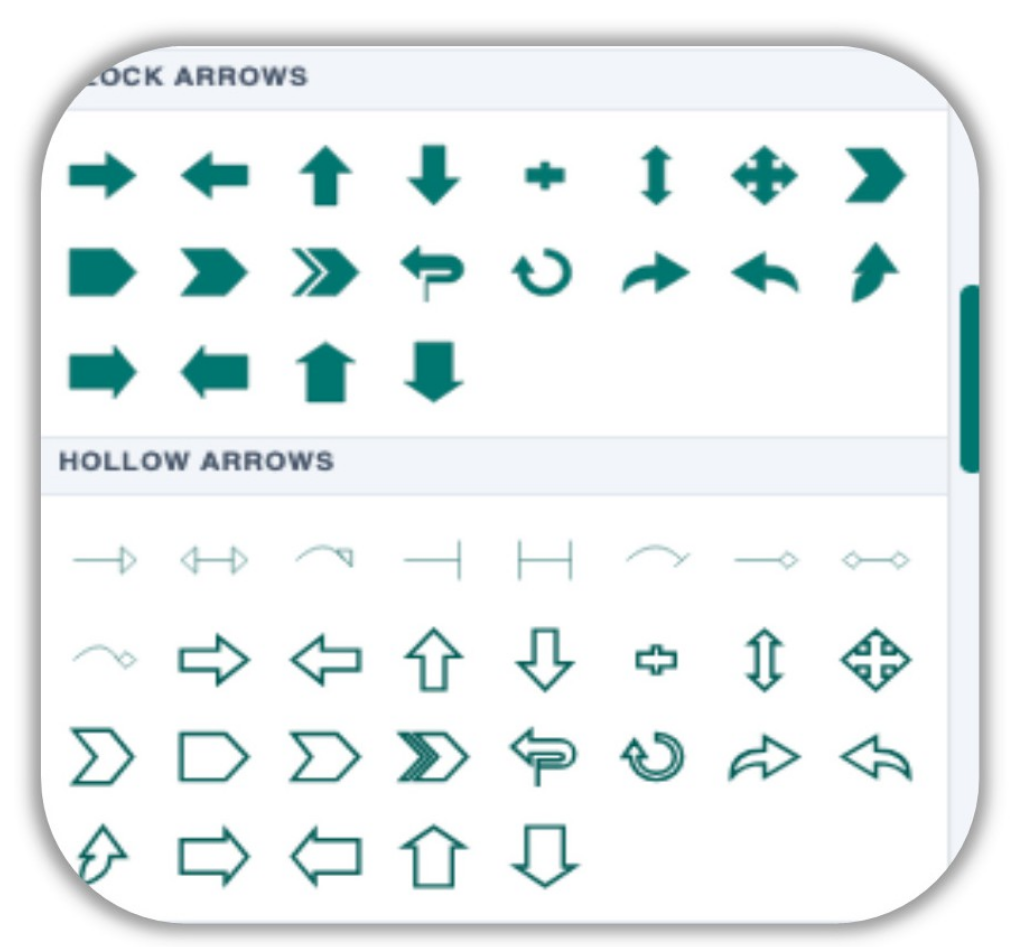
A dedicated Hollow Arrows section within the Shape dropdown menu provides 9 unique arrowed line combinations using three distinct terminator styles:
-
Standard Hollow Points – Classic arrows with clean, transparent hollow arrowheads.
-
Flat Stops – Lines terminating in a perpendicular T-bar blocking line.
-
Hollow Diamonds – Elegant geometric diamond heads with transparent interiors.
All hollow arrows use modern SVG context-stroke mechanics, meaning their arrowheads automatically and perfectly adapt to match whatever stroke colour you apply to the line – no manual recolouring required.
Flexible Shape Resizing
Shapes in Open Publisher dynamically stretch to fill their bounding boxes independently in both directions. Dragging any handle adjusts width or height freely, giving you complete control over proportions – whether you need a wide horizontal banner, a tall narrow column, or any non-square layout.
For proportional resizing, hold Shift while dragging a corner handle to lock the aspect ratio, or hold Ctrl / Cmd + Shift to scale proportionally from the centre point.