Inserting, Swapping & Managing Images
Open Publisher offers powerful, drag-and-drop image handling and batch processing tools. Whenever an image is selected on the canvas, the Picture Tools contextual tab appears automatically in the ribbon, providing access to all formatting and management options.
Inserting Images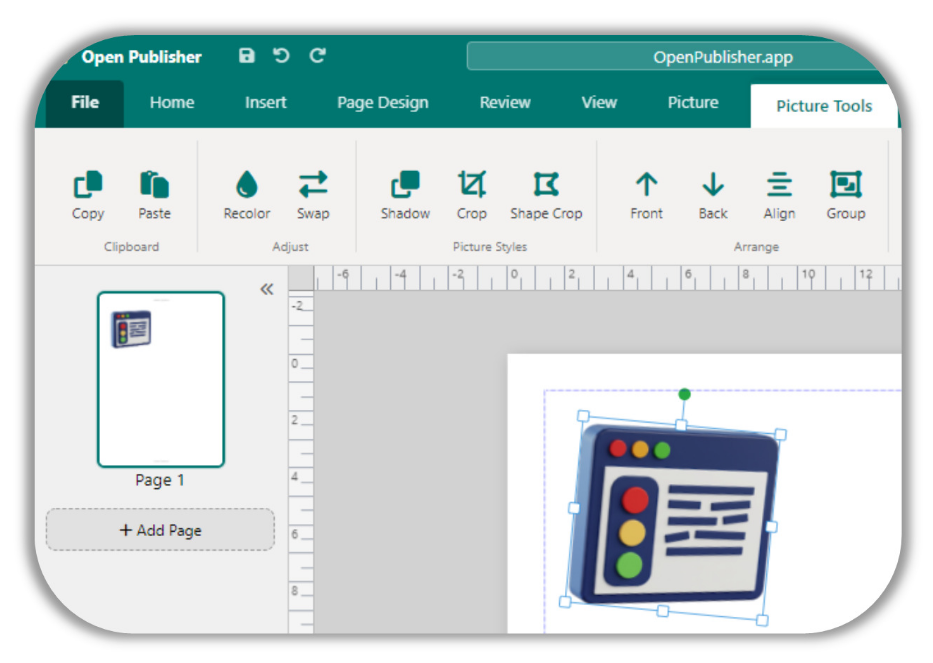
Images can be brought into your document in several ways:
-
Ribbon: Go to Insert > Picture and browse for an image file on your system.
-
Drag-and-Drop: Drag any JPG or PNG file from your desktop or file manager directly onto the canvas. Open Publisher automatically pre-loads the image in the background, measures its natural dimensions, and scales it down to fit the canvas while perfectly maintaining the original aspect ratio – no more fixed 200×100 default boxes.
-
Paste: Copy an image to your clipboard and press Ctrl+V / Cmd+V while the canvas is focused.
-
URL: In the Insert menu, choose Insert from URL and paste in a direct web image link.
Once inserted, the image is a movable, resizable canvas element with selection handles on all edges and corners. Drag to reposition; drag the handles to resize.
Picture Placeholders
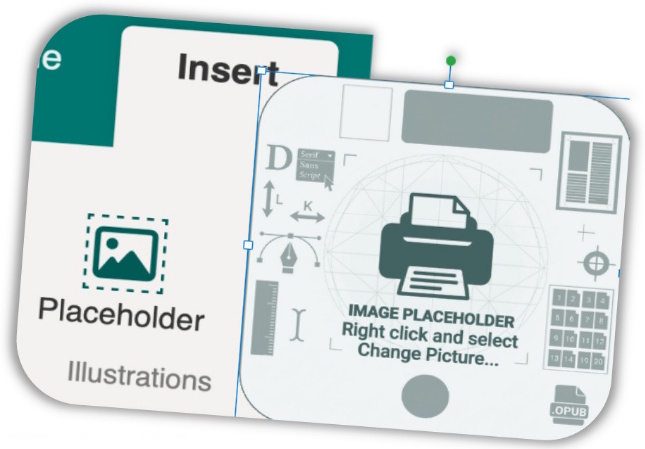 When you are designing a layout but don’t yet have your final photos ready, Picture Placeholders let you block out exactly where images will go, at the exact dimensions you want, without needing the real photos.
-
Go to Insert > Picture Placeholder.
-
A styled empty frame with a dashed border and camera icon appears on the canvas. Resize and position it as needed.
-
When your real image is ready, double-click the placeholder to open a file browser and swap it with the actual photo immediately.
Placeholders carry the data-is-placeholder=”true” attribute, which the Batch Picture Swap engine uses to find and fill them automatically.
Batch Picture Swap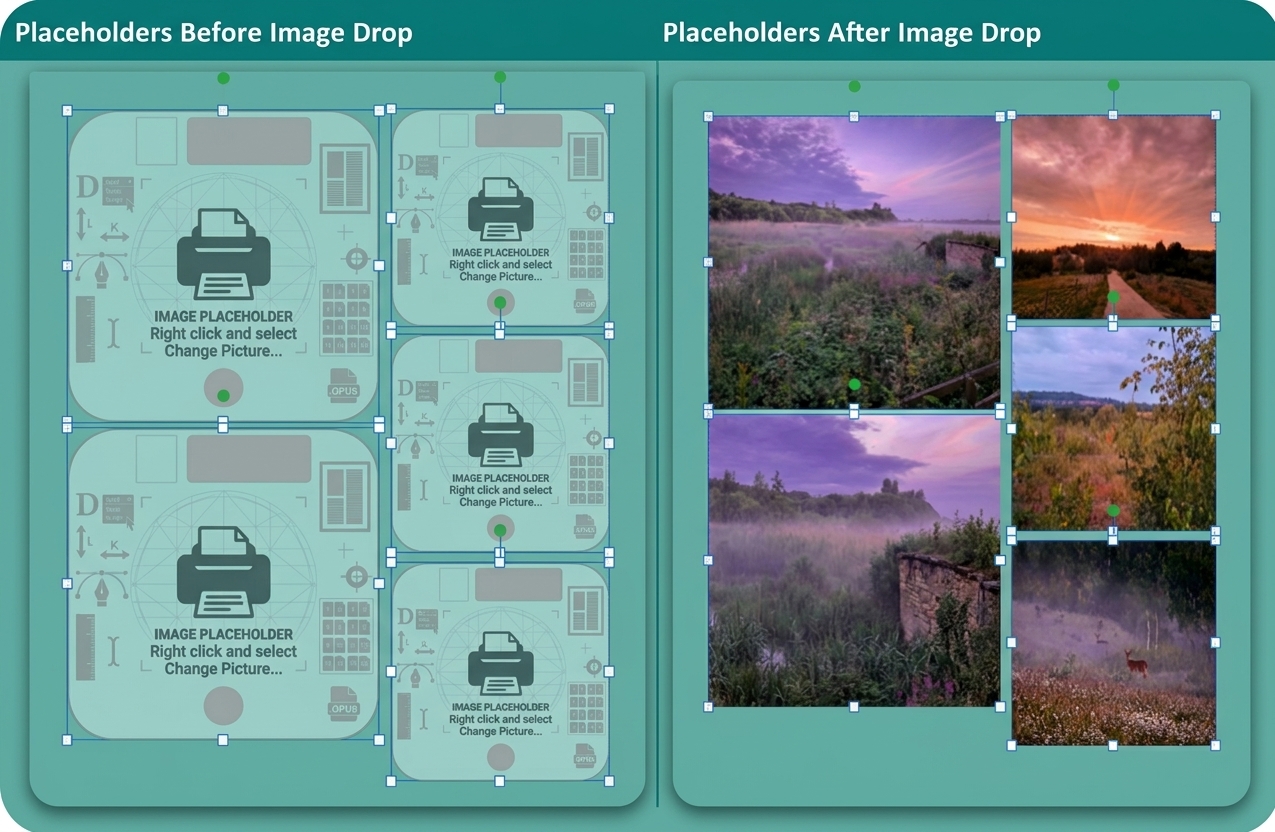
If you have a layout with multiple Picture Placeholders and a folder of photos ready, the Batch Picture Swap feature lets you fill all of them in one drag-and-drop action.
-
Select multiple image files from your desktop or file manager.
-
Drag the entire batch and drop them onto the Open Publisher canvas.
-
Open Publisher detects that you have dropped multiple files and automatically scans the canvas for empty placeholders.
-
If no placeholders are explicitly selected, the engine finds all empty placeholders and sorts them top-to-bottom, left-to-right based on their geometric position on the page.
-
Each photo is assigned to a placeholder in order and swapped in instantly.
Tip: If you want to control which placeholder receives which photo, select specific placeholders before dropping the batch. The engine respects your selection and fills only the targeted elements.
Precise Size Controls
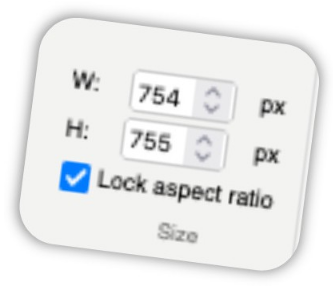 When an image is selected, the Picture Tools contextual ribbon includes a Size group with:
-
Width and Height spinners: Type an exact pixel value or use the up/down arrows to nudge in 1px increments.
-
Lock Aspect Ratio checkbox: When checked, changing the width automatically recalculates the height proportionally (and vice versa), preventing distortion. This is identical to holding Shift while dragging a resize handle.
The Graphics Manager
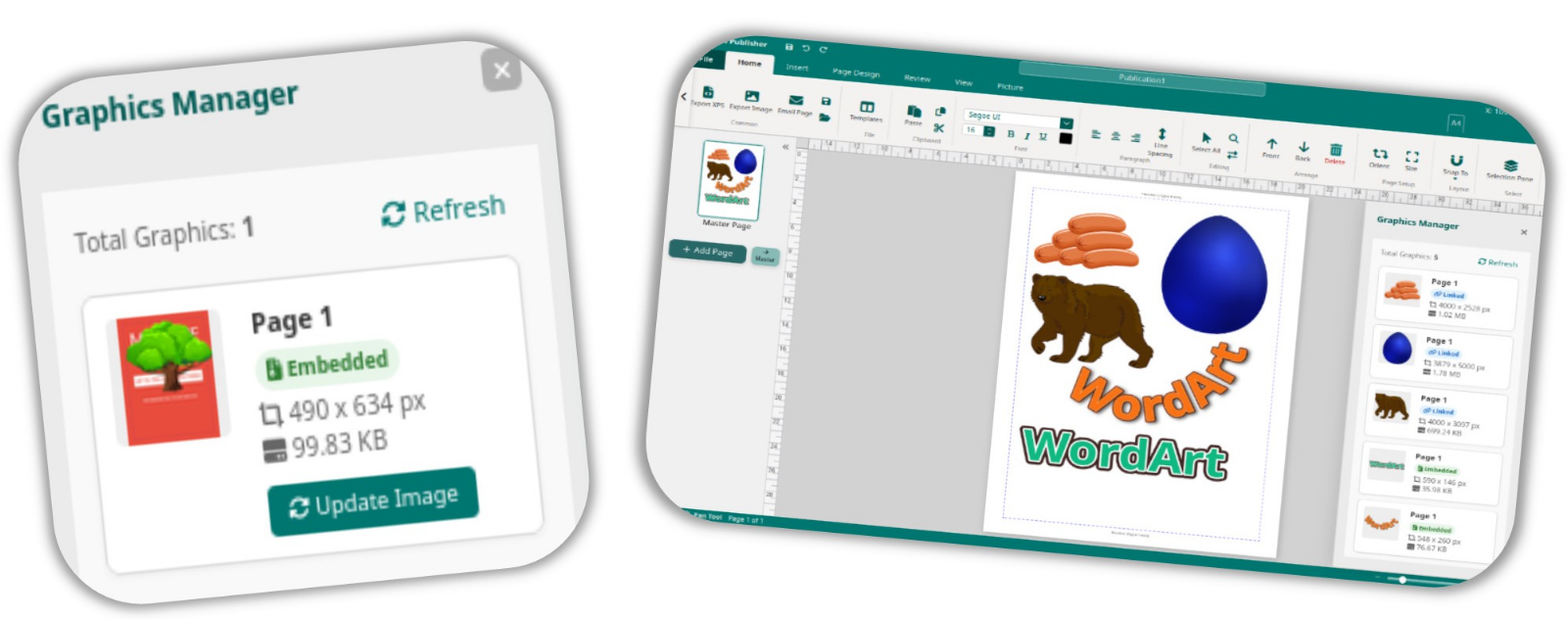
The Graphics Manager gives you a complete audit of every image and graphic in your entire document – across all pages – in one unified, searchable panel.
To open it, go to File > Info > Graphics Manager, or click Graphics Manager in the Picture Tools ribbon. It displays a scrollable list of every image in the document, showing:
-
A thumbnail preview
-
The image name or URL
-
The page number it lives on
-
Its current status (OK, Missing, Low-Resolution)
From the Graphics Manager you can click any entry to instantly jump to that image’s page and select the element (Navigate), or click the Update button to replace it with a new file from your system without changing its position or size on the canvas.