Export to PDF
Open Publisher produces print-quality PDF output via the native browser Save as PDF workflow, with an automated pre-processing pipeline that ensures everything in your document – effects, crops, filters, and Master Pages – is accurately captured in the final file.
How to Export as PDF
-
Go to File > Export to PDF, or click the Export PDF button in the Export group of the File ribbon.
-
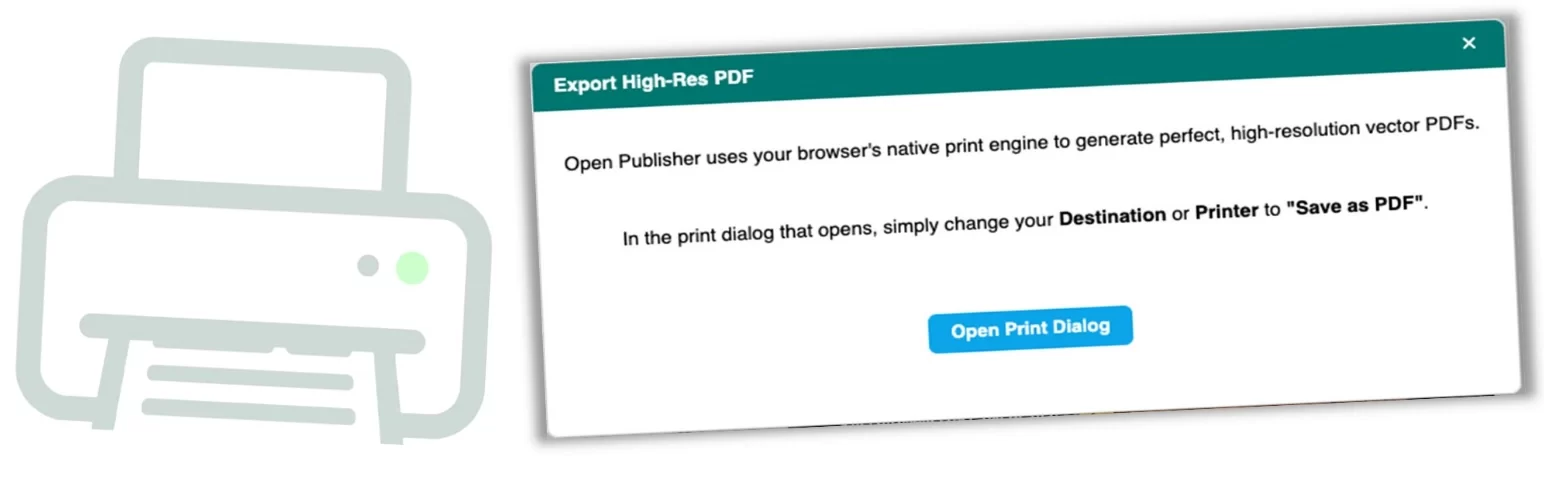
A guidance dialog opens explaining the process. Open Publisher opens your system’s print menu and instructs you to select “Save as PDF” as the printer destination.
-
Click through to generate and save the file.

PDF Pre-Processing Pipeline
The PDF export uses the same high-resolution print engine as standard printing, with the following
additional pre-processing steps applied automatically
before the snapshot is taken:
-
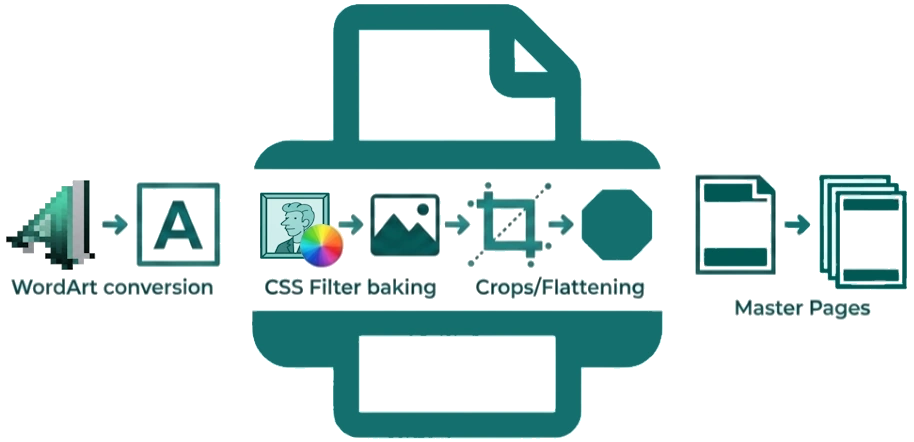
WordArt – Converted to a 1:1 PNG using the Canvas Compositor.
-
CSS filters – Hue rotation, brightness, contrast, and other image filters are baked into images via canvas rendering.
-
Shape crops, clip-paths, and 3D rotations – All flattened and rasterised.
-
Master Page headers and footers – Correctly applied to every page in the document.
-
Margin guides and selection boxes – Stripped from the snapshot so they never appear in the exported file.