
Export as HTML
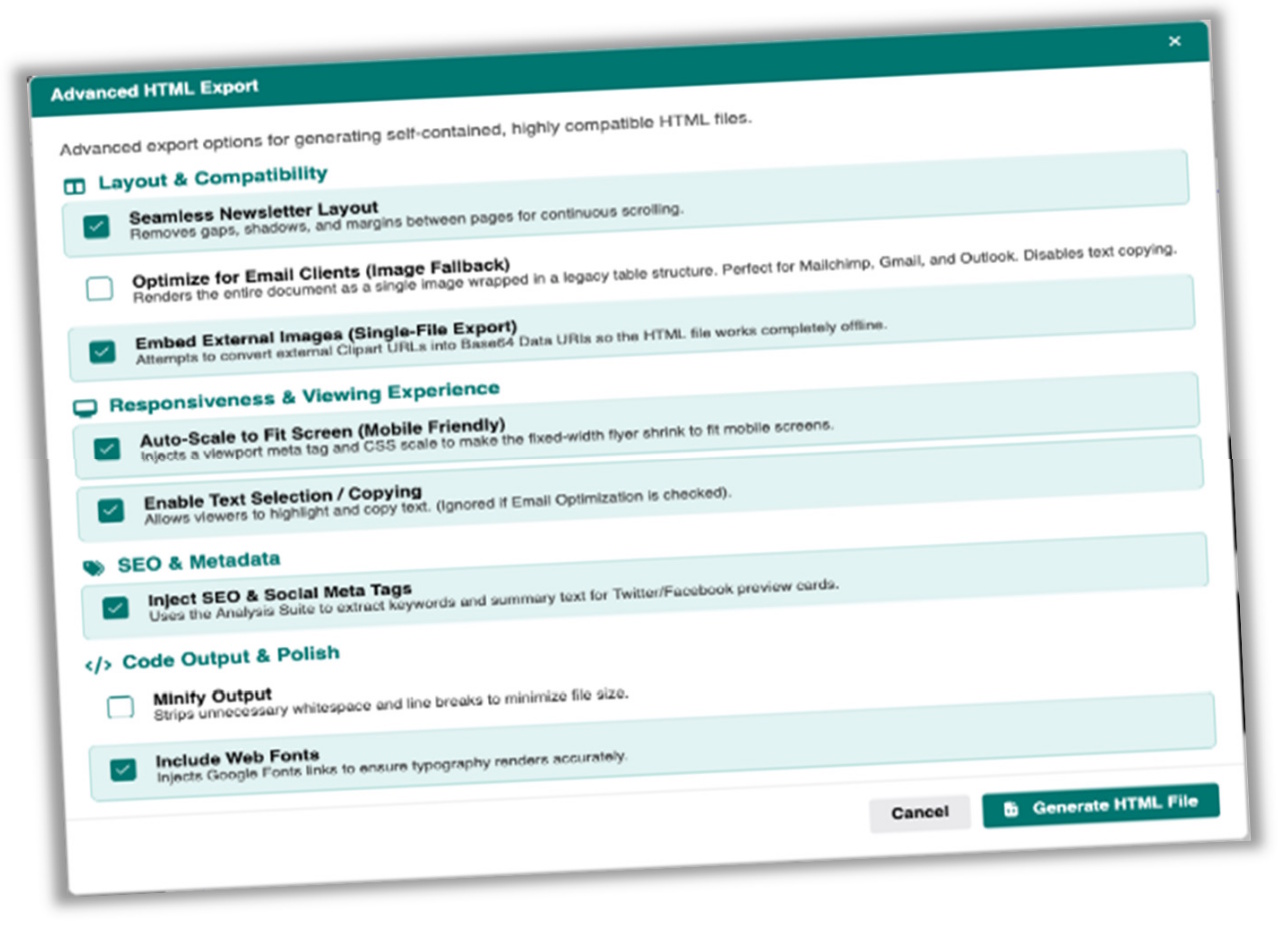
The Export as HTML feature turns your Open Publisher document into a standalone .html file for use as an email newsletter, a mobile-responsive flyer, or a web page. An Advanced HTML Export modal gives you full control over exactly how the file is generated.
How to Export as HTML
-
Go to File > Save as HTML.
-
The Advanced HTML Export modal opens. Choose your export options (see below).
-
Click Generate HTML File to download the result.
Export Options
-
 Seamless Newsletter Layout – Removes margins and shadows between pages for a single unified scrolling canvas.
 -
 Optimise for Email Clients – Converts all pages to high-fidelity screenshots wrapped in a legacy <table> structure, ensuring 100% layout compatibility with strict email clients such as Gmail, Outlook, and Mailchimp, where modern CSS often fails.
 -
 Embed External Images (Single-File) – Converts all remote images (such as Clipart) into inline Base64 Data URIs, so the .html file works completely offline without broken image links.
 -
 Auto-Scale to Fit Screen – Injects a dynamic CSS transform: scale() rule so fixed-width flyer layouts shrink correctly onto small mobile screens.
 -
 Enable Text Selection / Copying – Controls whether viewers are able to highlight and copy text from the exported HTML page.
 -
 Inject SEO & Social Meta Tags – Runs a headless analysis of your document’s text, extracts the top 5 keywords, formulates a 150-character description, and injects og:title, og:description, and standard meta tags into the <head> – generating correct preview cards when shared on iMessage, Twitter, and Facebook.
 -
 Minify HTML – Strips away as much of the whitespace left behind as possible from the raw HTML so that the final file size is much more reduced.
 -
 Include Google Fonts – Appends <link> tags for all fonts used in the document, preserving your typography correctly in the browser.