
Export as XPS
For Windows users or corporate environments where PDF is not supported, Open Publisher can produce an XPS (XML Paper Specification) file – Microsoft’s built-in alternative to PDF. XPS files work natively on virtually any Windows machine without requiring Adobe Acrobat or any third-party software.
Note: Because XPS is a proprietary Microsoft format, this export method relies on the Windows operating system. macOS and Linux users will not have access to the XPS Document Writer in their native print dialogs.
How to Export as XPS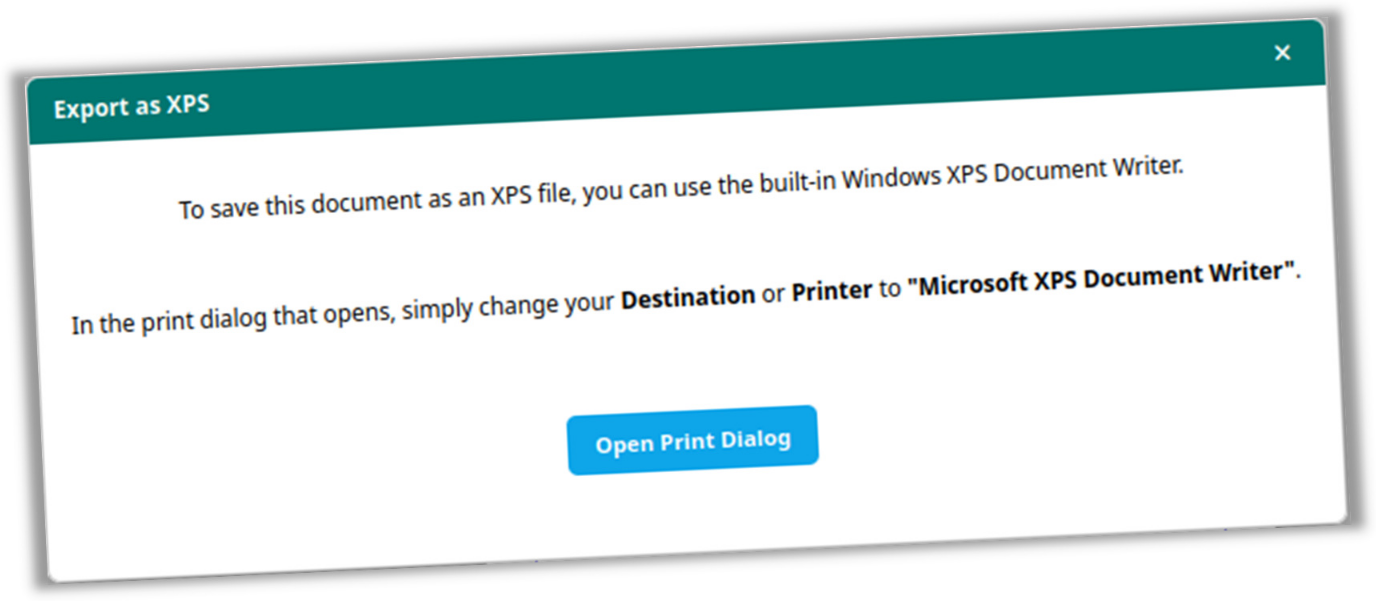
-
Click Export XPS in the File or Home ribbon tab (next to the PDF export button).
-
A dialog opens explaining the process. Because web browsers cannot natively generate XPS files on their own, the button hooks into your browser’s native print engine and instructs you to select “Microsoft XPS Document Writer” as your printer destination.
-
When the print dialog opens, confirm that Microsoft XPS Document Writer is selected as the printer destination. Click Print, choose a destination folder on your computer, enter a file name, and click Save.
Troubleshooting
-
Missing XPS Document Writer: If this option does not appear in your printer list, it may be disabled on your machine. Go to Windows Settings > Apps > Optional Features, click “Add a feature,” and install the Microsoft XPS Document Writer.
-
Print Dialog Blocked: If clicking the export button does nothing, ensure your web browser’s pop-up blocker is not preventing the print dialog from launching. Look for a blocked pop-up icon in your URL address bar.