
Multi-Select, Grouping & Flip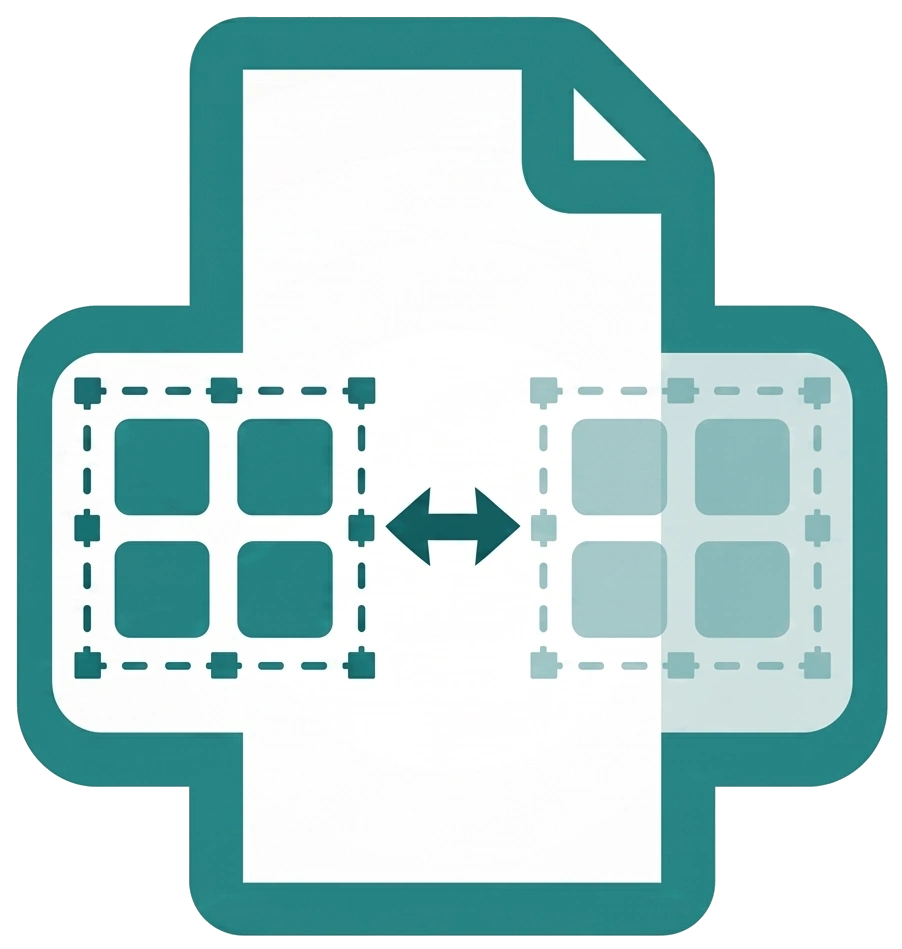
Open Publisher provides several ways to select and work with multiple elements at once,
as well as a quick gesture for mirroring any element without using a menu.
Selecting Multiple Elements
There are three ways to select more than one element at a time:
-
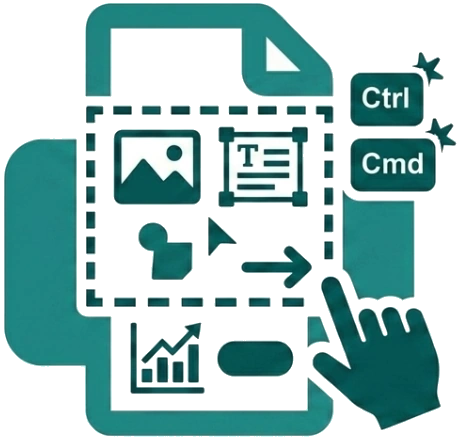
Marquee Selection – Click and drag on an empty area of the canvas to draw a selection rectangle. Any element whose bounds fall within the rectangle is selected automatically.
-
Ctrl+Click / Cmd+Click – Hold Ctrl (Windows / Linux) or Cmd (Mac) and click additional elements to add them to the current selection one by one.
Once multiple elements are selected, you can move, resize, and delete them all at once.
Flipping & Mirroring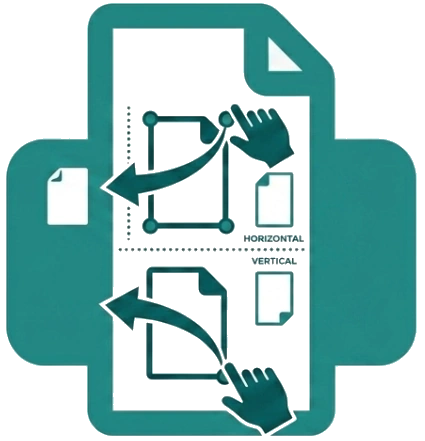
To flip any element horizontally or vertically, drag one of its resize handles past the element’s opposite edge. Dragging past the left or right edge mirrors it horizontally; dragging past the top or bottom edge mirrors it vertically. No menu required – it happens naturally as part of the resize gesture.
A Note on Grouping
The Group feature is currently unavailable and is greyed out in the menu. Use the multi-select methods above as a working alternative for managing several elements together.