Installation Guide
Windows
Open Publisher on Windows ships in two forms to suit different preferences and environments:
-
Standard Installer (.exe): Run the installer to have Open Publisher set up automatically. It creates Start Menu and Desktop shortcuts, and registers the .opub file extension in the Windows registry so that double-clicking any .opub file will instantly launch the app and load your document.
-
Portable Version (.exe): If you prefer not to install anything, the self-contained portable .exe runs completely in isolation — no registry modifications, no administrator privileges required. Simply drop it in any folder and run it.
How to Install on Windows:
-
Download your preferred version (Standard or Portable) from the official repository.
-
Double-click the downloaded .exe file.
-
If using the Standard Installer, follow the on-screen setup wizard to complete the installation.
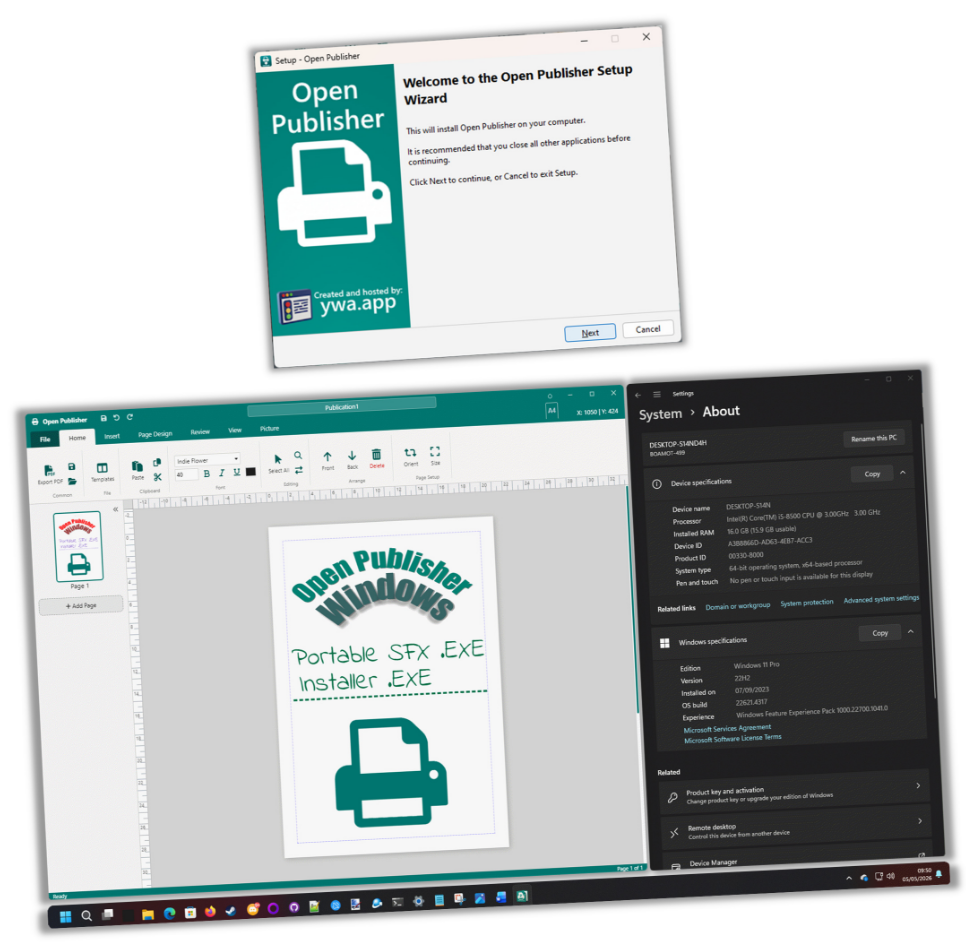 In both cases, Windows will correctly associate .opub and legacy .pub files with Open Publisher after setup.
macOS
On macOS, Open Publisher integrates deeply with the operating system’s native conventions:
-
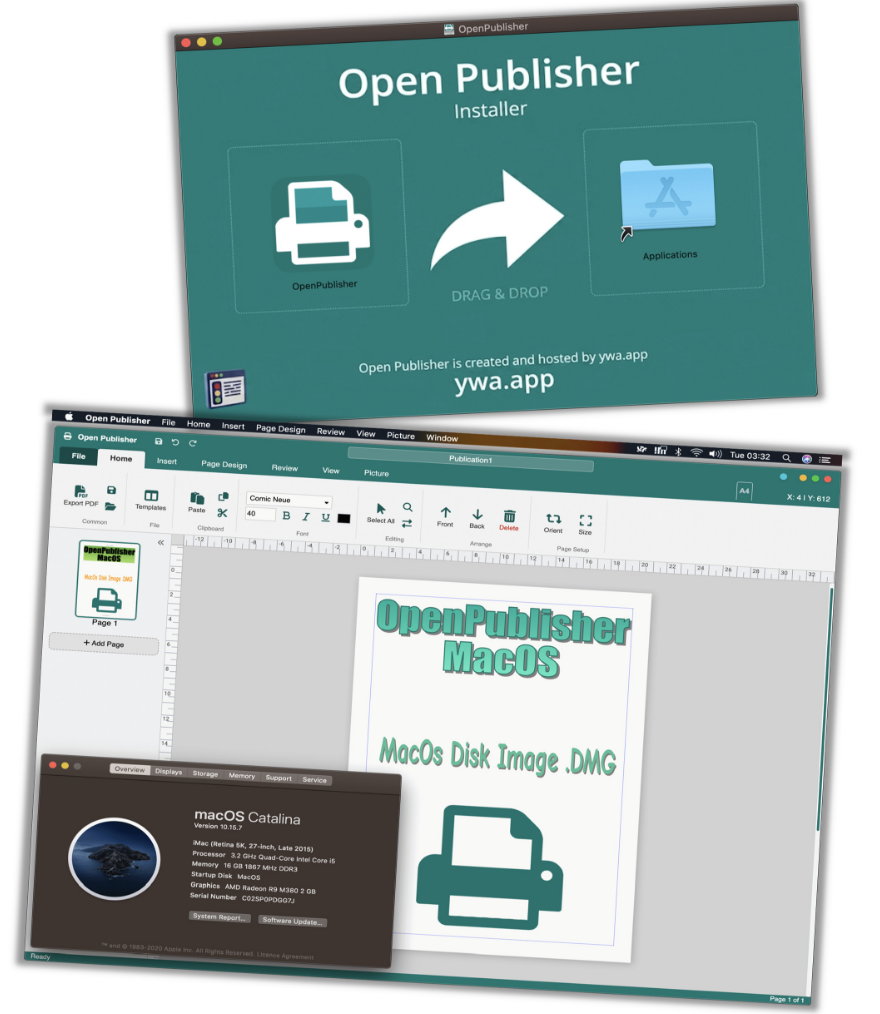
A fully native macOS menu bar maps all of the app’s tools to the top of your screen, categorised by ribbon tab (File, Home, Insert, Page Design, Review, View, Picture).
-
The app correctly identifies itself as “Open Publisher” in the menu bar, Dock, and system UI.
-
A native warning modal prevents you from accidentally closing the app with unsaved changes.
-
A custom splash screen and an offline connection error screen are built in for a polished experience.
How to Install on macOS:
-
Download the Open Publisher .dmg (Disk Image) file.
-
Double-click the file to mount the disk image.
-
Drag and drop the Open Publisher icon into your Applications folder.
-
Launch the application from Launchpad or Spotlight search.
Linux
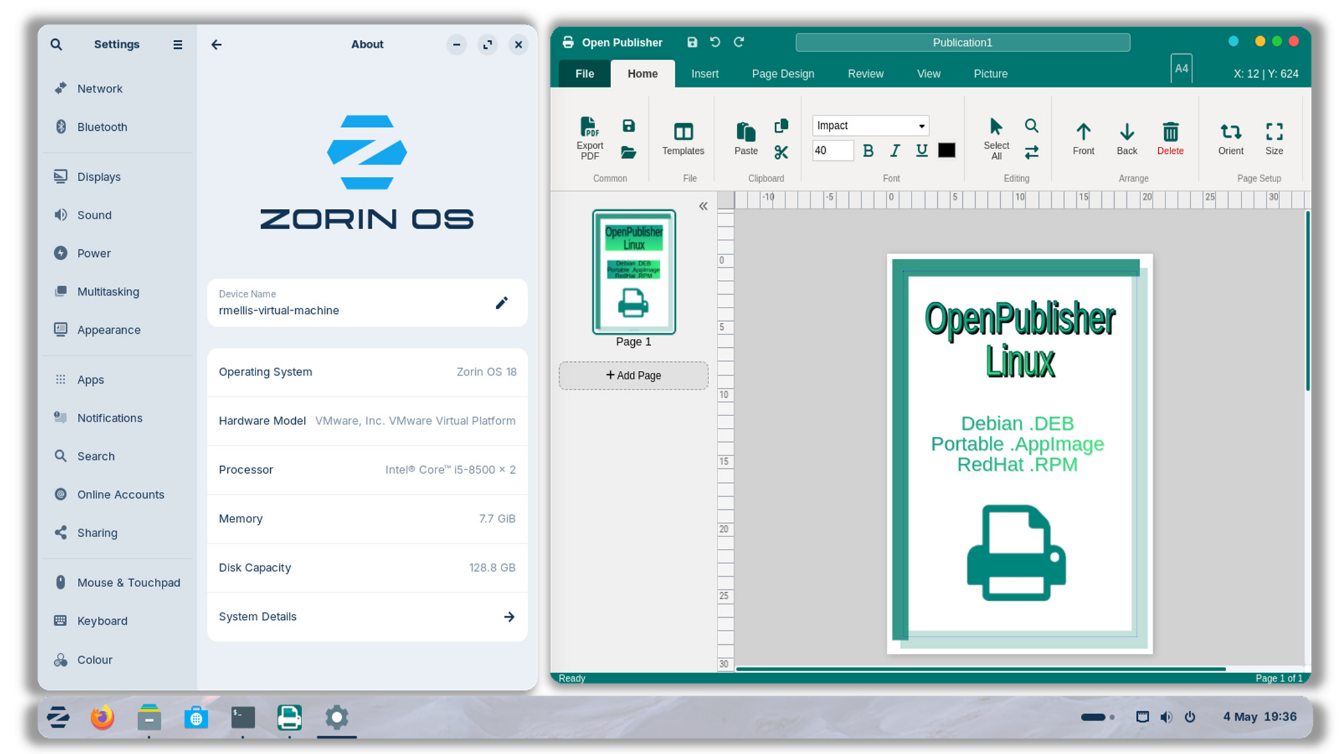
Open Publisher is packaged for Linux in three formats to accommodate different distributions and preferences:
-
`.deb` — for Debian/Ubuntu-based distributions.
-
`.rpm` — for Fedora/RHEL-based distributions.
-
`.AppImage` — a portable, self-contained format that runs on virtually any Linux distribution without installation.
How to Install on Linux:
-
Debian/Ubuntu: Download the .deb file and install via your graphical software center, or use your package manager in the terminal.
-
Fedora/Suse/RHEL: Download the .rpm file and double-click to install, or run it through your terminal package manager.
-
Portable AppImage: Download the .AppImage file. Right-click the file, select Properties, and check the box to “Allow executing file as program”. Double-click to run instantly.
The application installs into the /opt/ directory and registers application/x-openpublisher MIME types so that file associations work correctly out of the box. An automation script runs at the end of installation to refresh your system’s icon cache and MIME database.