
Document Basics & The .opub File Format
Open Publisher uses the .opub file extension as its native document format. When you save your work, your entire publication is written to a single, portable .opub file that you can store anywhere on your computer.
Key Things to Know About the .opub Format

-
Everything is stored locally: The file stores all of your pages, custom ruler origins, page notes, margin settings, master page overrides, and Theme Studio preferences.
-
Double-click to open: On all supported operating systems, simply double-clicking an .opub file automatically launches Open Publisher and loads your document.
-
Backwards compatible: Open Publisher continues to fully support its older .json save files. Both file types are recognized and loaded seamlessly.
-
AES-GCM Encryption: The format fully supports native password protection, saving your document as a secure, encrypted binary blob if you choose to lock it.
Creating, Saving, & Opening Documents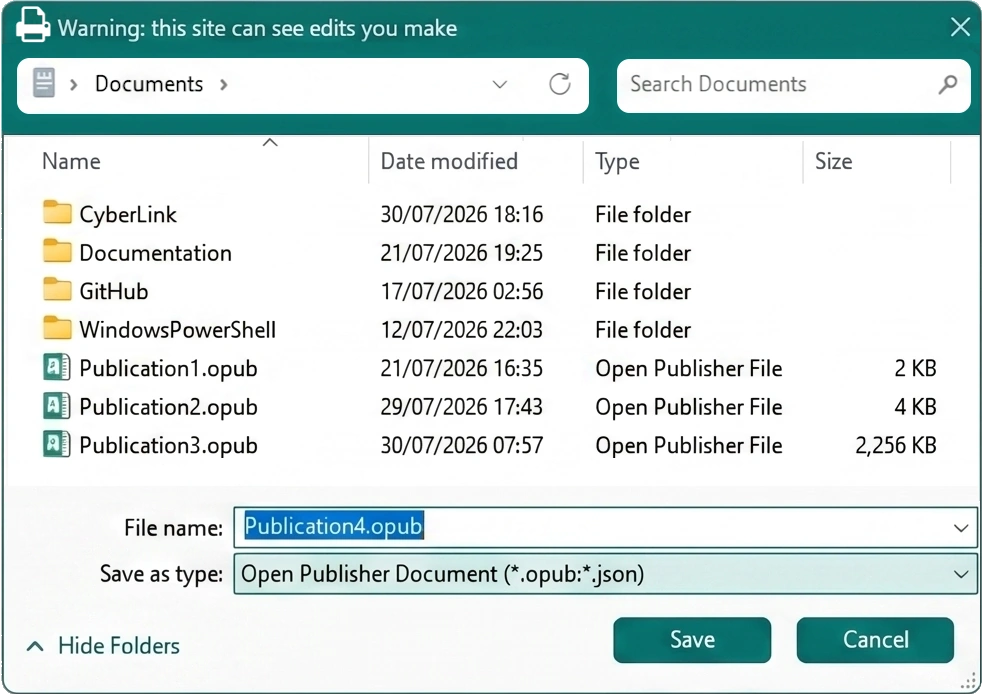
-
Creating a New Document: Go to File > New to open the template browser. From here, you can select from a wide range of professionally designed templates or choose a standard blank canvas size.
-
Saving Your Work: Press Ctrl+S (Windows/Linux) or Cmd+S (macOS). Open Publisher cleverly intercepts this keyboard shortcut at the application level and routes it directly to its internal save engine, downloading your file without triggering the browser’s default “Save Page As” dialog.
-
Drag-and-Drop Loading: You can drag an .opub or .json file directly onto the Open Publisher canvas. The smart drag-and-drop router instantly detects the file and restores your working session.
Importing Legacy Files (Microsoft Publisher & Word)
| Format | How it imports |
| `.opub` / `.json` | Native format – full fidelity, restores your entire working session exactly. |
| Images (`.png`, `.jpg`, `.gif`, `.webp`, etc.) | Dropped or opened images are placed directly onto the current page canvas. |
| Publisher Files (`.pub`, `.pubx`) | Experimental import of legacy Microsoft Publisher files. Layout fidelity varies. |
| Excel Spreadsheets (`.xlsx`, `.xls`) | Rendered as fully interactive, movable, resizable table objects (see Section 5). |
| Word Documents (`.doc`, `.docx`) | Two import modes available (see below). |
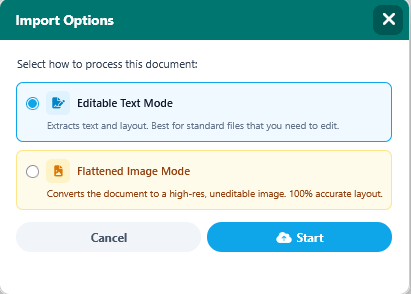
You can directly import Microsoft Publisher files (.pub, .pubx) and Microsoft Word documents (.doc, .docx). When opening these files, a pre-flight menu offers two import modes:
-
Editable Text Mode: Extracts your layout, text, and fonts into editable Open Publisher text boxes. It uses an optical color scanner to read the original text colors directly from the file’s PDF layers. This is best for documents you want to continue editing.
-
Flattened Image Mode (Safe Mode): Renders the document as a high-resolution, pixel-perfect background image. While less editable, it guarantees 100% layout accuracy. Recommended for complex medical tables or forms where visual fidelity matters more than editability.
Note: You can also drag-and-drop Excel spreadsheets (.xlsx, .xls) to open the interactive Table Import Wizard, or drop standard images directly onto the canvas.
Document Properties & Metadata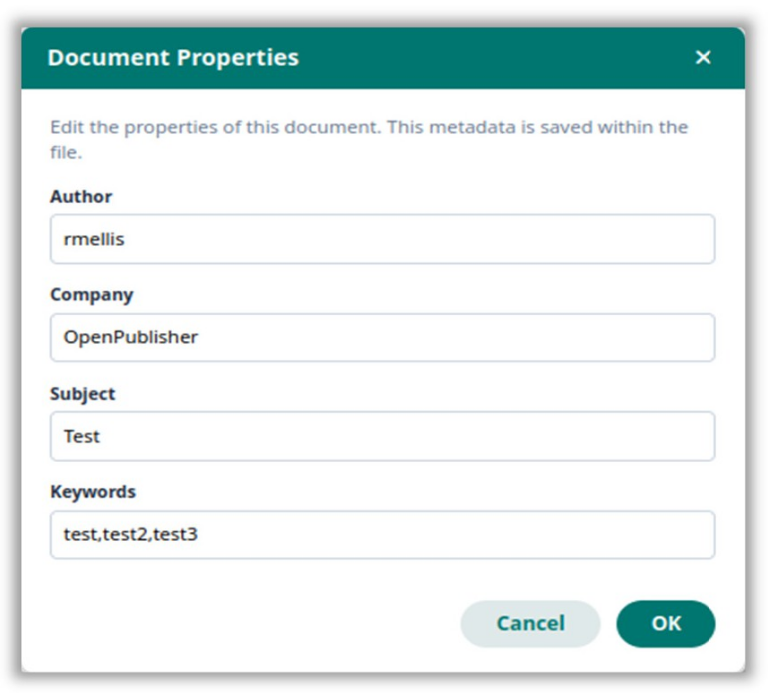
Open Publisher allows you to embed rich metadata directly into your .opub file. Go to File > Info > Properties to set the document’s Author, Company, Subject, and Keywords. This information is stored within the save file and improves context and searchability for collaborators.
Creating a New Document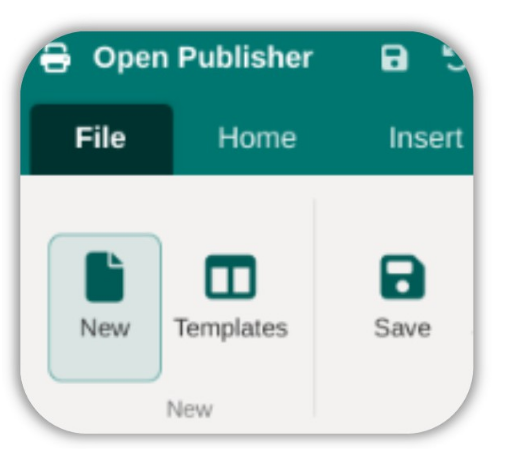
To start a fresh publication, go to File > New. This opens the template browser, where you can select from a range of professionally designed publication templates (newsletters, flyers, posters, business cards, etc.) or choose a blank canvas at a standard size. Once selected, a new, untitled document opens at the specified dimensions.