
 The Navigation Pane & Views
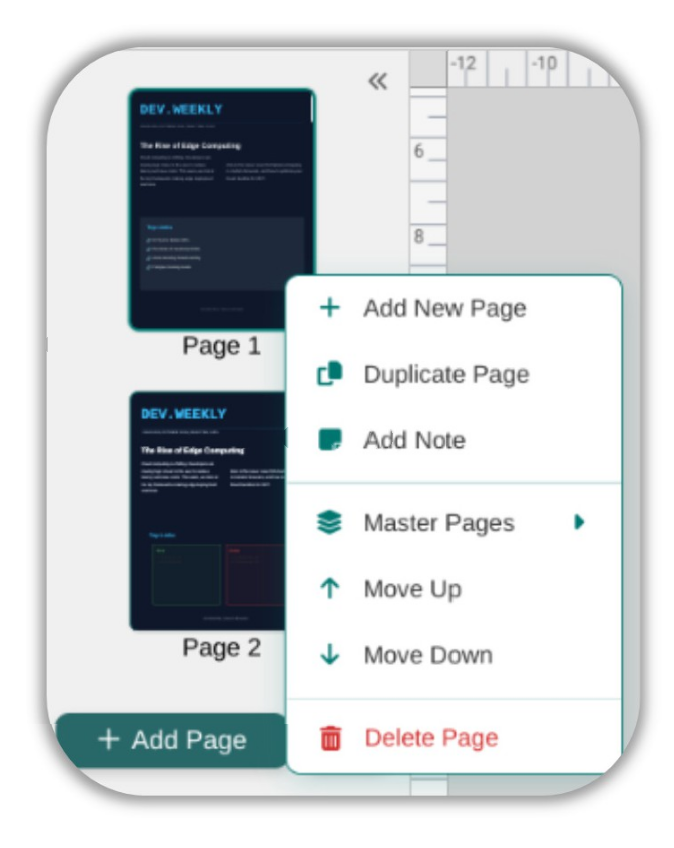
The left-hand Navigation Pane provides a live thumbnail preview of every page in your document. Clicking any thumbnail instantly switches the active canvas to that page. The thumbnails are generated automatically using a fast DOM-cloning system and update within 1.5 seconds of your last edit, so you always have an up-to-date visual map of your publication.
Sidebar Context Menus
Right-clicking anywhere on a page thumbnail opens a context menu with options to insert, duplicate, move, or delete pages, as well as add notes or access the Master Pages submenu. Right-clicking the blank grey area of the Navigation Pane (not on a thumbnail) opens a workspace-level context menu for adding a new blank page, toggling Two-Page Spread Mode, collapsing the sidebar, changing Page Design / Size, and exporting or printing the document.
Two-Page Spread Mode
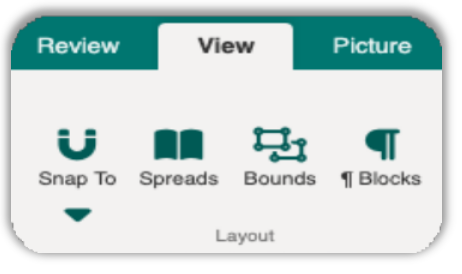
For publications designed as booklets or magazines, enable Two-Page Spread Mode from the Navigation Pane context menu. In this view, facing pages are displayed side by side in the sidebar thumbnails, allowing you to visualise the relationship between a left-hand and a right-hand page as readers will see them.
Multi-Page View
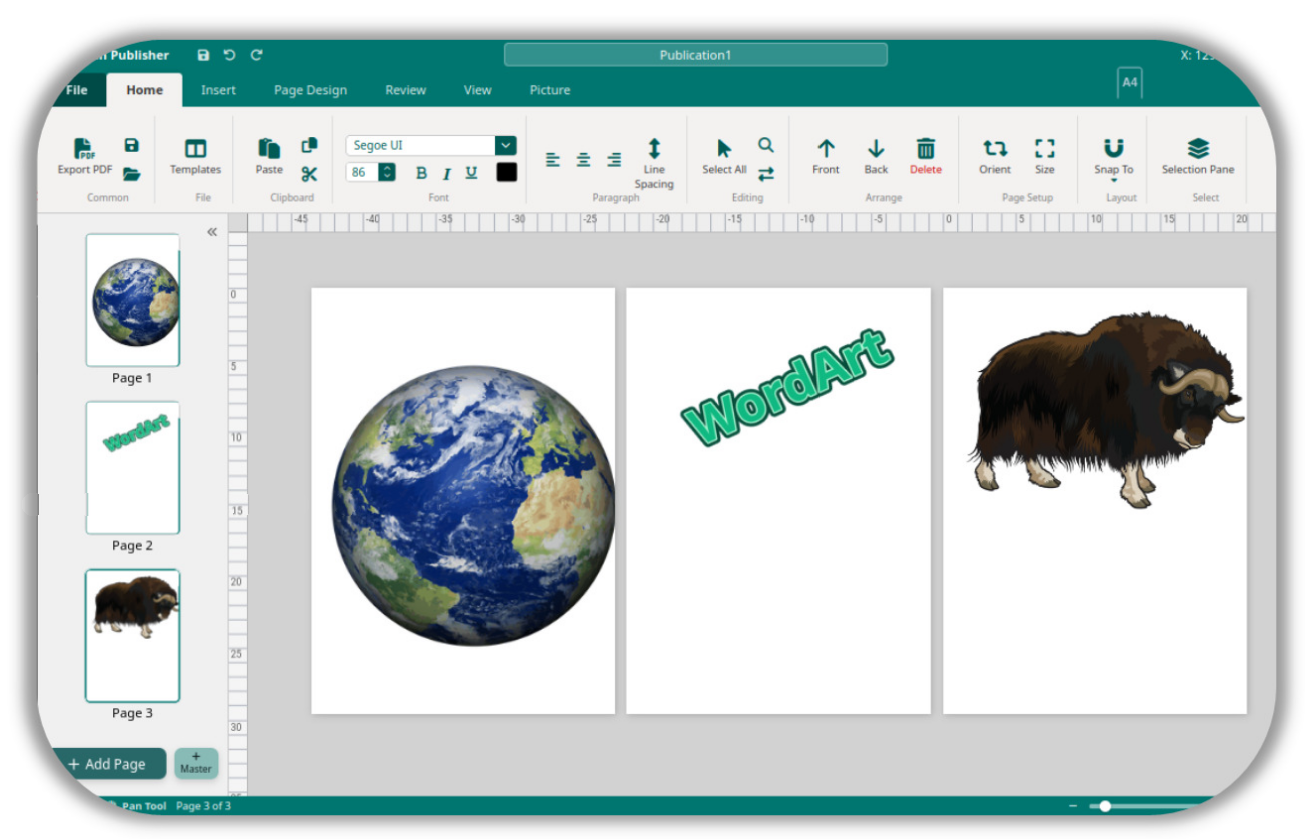
When you zoom out to 45% or below on a document that contains more than one page, Open Publisher automatically activates Multi-Page View. In this mode, all pages are rendered side-by-side in the workspace, giving you a bird’s-eye overview of your entire publication at once.
-
Pages are always arranged horizontally in a single row, calculated to fit your display width.
-
All non-active pages are shown as read-only preview clones, rendered at full 1:1 quality.
-
The active (editable) page is clearly labelled with an “(Editing)” badge and retains full interactivity.
-
Clicking any preview page instantly swaps it to become the active editable page.
-
To exit Multi-Page View, simply zoom back in above 45%.