
Template Saving & Content Migration
Open Publisher includes dedicated tools to help you build reusable layouts and move text between different designs without destroying your precise formatting.
Saving a Document as a Template
You can save any document you have designed as a Publisher Template so that it can be used as a clean starting point for future publications, without the risk of overwriting the original.
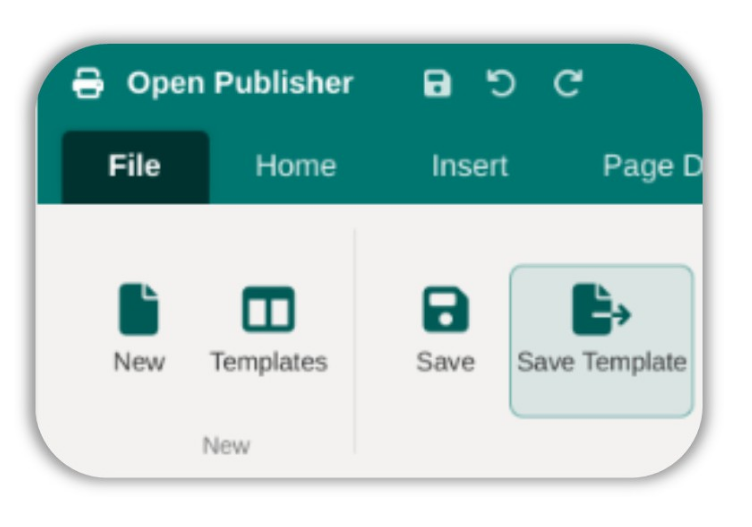
-
Design your publication as normal.
-
In the File ribbon, click Save Template (located next to the standard Save button).
-
Save the resulting .opub file to a convenient location.
When you save a template, a hidden isTemplate: true flag is embedded in the file, and your current working session is renamed to “Untitled [DocumentName]”. When someone later opens the template, saving it for the first time will always prompt for a new filename, permanently protecting the original from accidental overwrites.
Content Migration (Insert > File)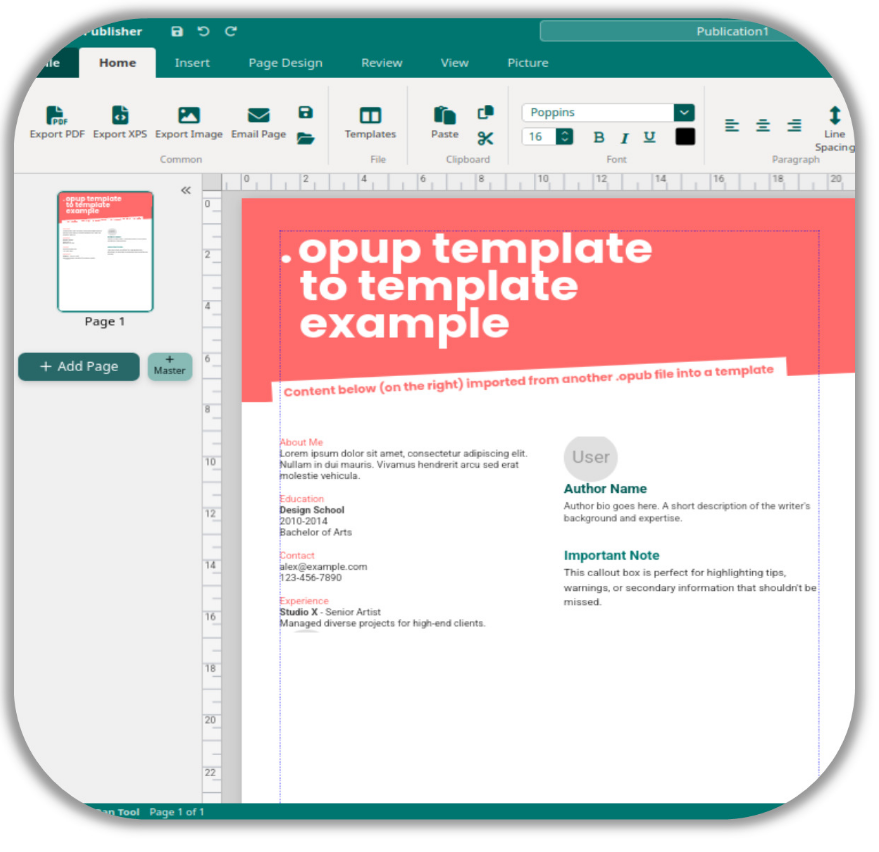
Because Open Publisher is a precise page-layout tool where elements are locked to specific coordinates, you cannot simply open an old document inside a new template and expect the layout to transfer automatically. However, you can easily migrate text using the Insert File tool.
-
Open the new template via File > New and select your desired layout.
-
Click inside the text box on the new template where you want your content to appear (it must be actively selected).
-
In the Insert ribbon, click the Insert File button.
-
Browse to your existing .opub or .json document and select it.
Open Publisher will scan every page of the selected file in the background, extract all text elements, and pour their content directly into your active text box.
Note: Only text content is migrated. Images and shapes require manual placement in the new layout because their positions are tied to specific coordinates that may not correspond to the new template’s design.