
Paragraph Formatting & Text Flow
Beyond basic font styling, Open Publisher offers advanced typographic controls for managing paragraph structure, alignment, and multi-page text flow.
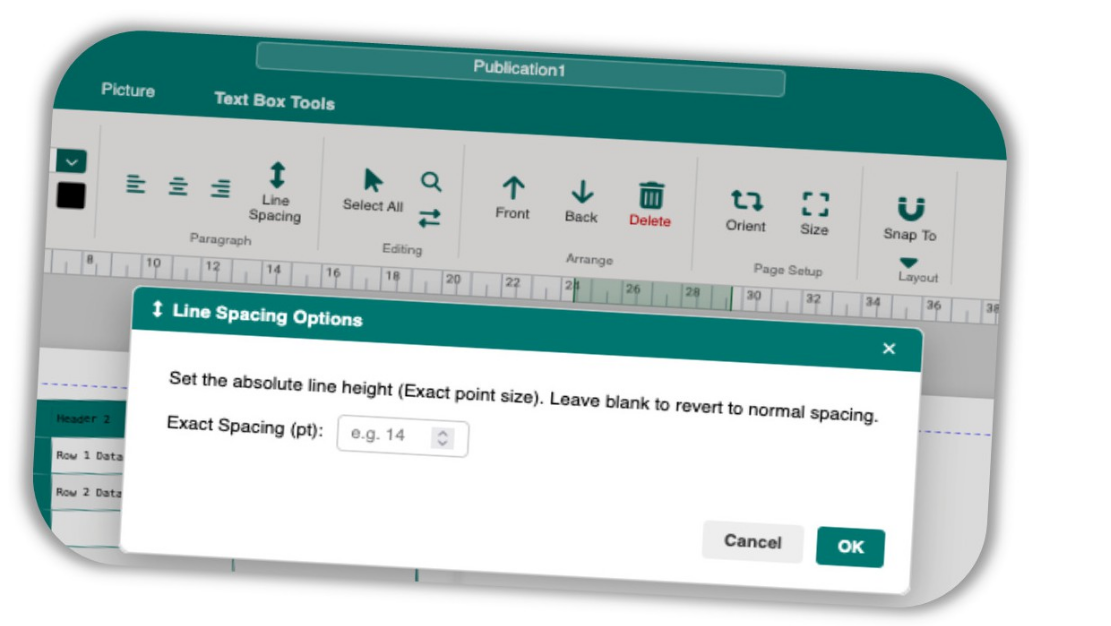
Open Publisher provides an Exact Line Spacing tool that overrides dynamic CSS line-height calculations and locks your text to absolute point measurements.
To set exact line spacing:
-
Select a text box.
-
Click the Line Spacing button (the vertical double-arrow icon) in the Paragraph group on the Home ribbon, or from the floating Text Box Tools panel.
-
In the modal that opens, type an exact point value (e.g., 14, 30).
-
Click OK. The text box instantly updates to that exact line height.
Leaving the field blank and clicking OK reverts the text box to standard normal CSS line-height inheritance.
Paragraph Indents (Ruler Drag Markers)
When a text box is selected and you are editing text inside it, three interactive indent markers appear on the left edge of the horizontal ruler:
| Marker | Description |
| Top Triangle (First Line Indent) |
Drag independently to adjust the starting position of the first line of the paragraph only. |
| Bottom Triangle (Hanging Indent) |
Drag to push the left edge of all subsequent lines, keeping the first line anchored – perfect for bullet lists and numbered paragraphs. |
| Bottom Rectangle (Left Indent) |
The master handle. Drag it to shift the entire paragraph block left or right while preserving the relative indent spacing between the two triangles. |
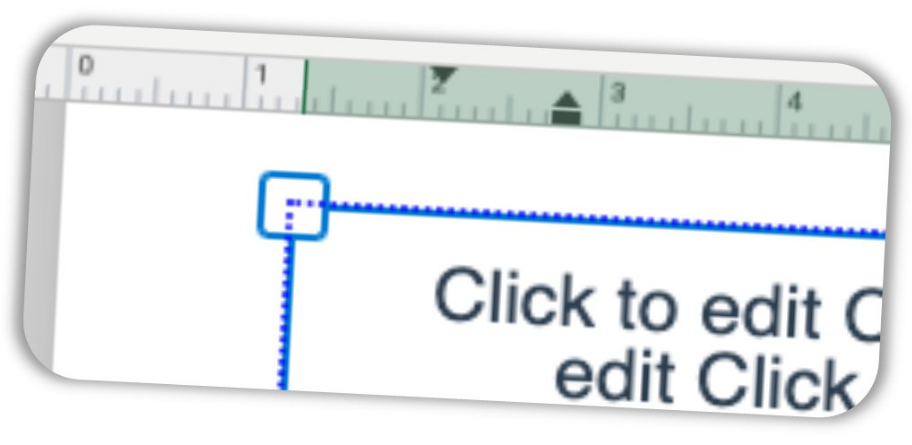
The markers are context-aware: clicking between different paragraphs in the same text box causes them to jump instantly to reflect that paragraph’s unique indentation. The coordinate engine compensates for zoom level and scroll position, so precision drag behaviour is maintained regardless of how far in or out you are zoomed.
Tab Stops & Tab Leaders
Open Publisher supports fully customisable tab stops with tab leaders – the connecting dotted, dashed, or solid lines used in menus, price lists, and tables of contents.
To configure tab stops: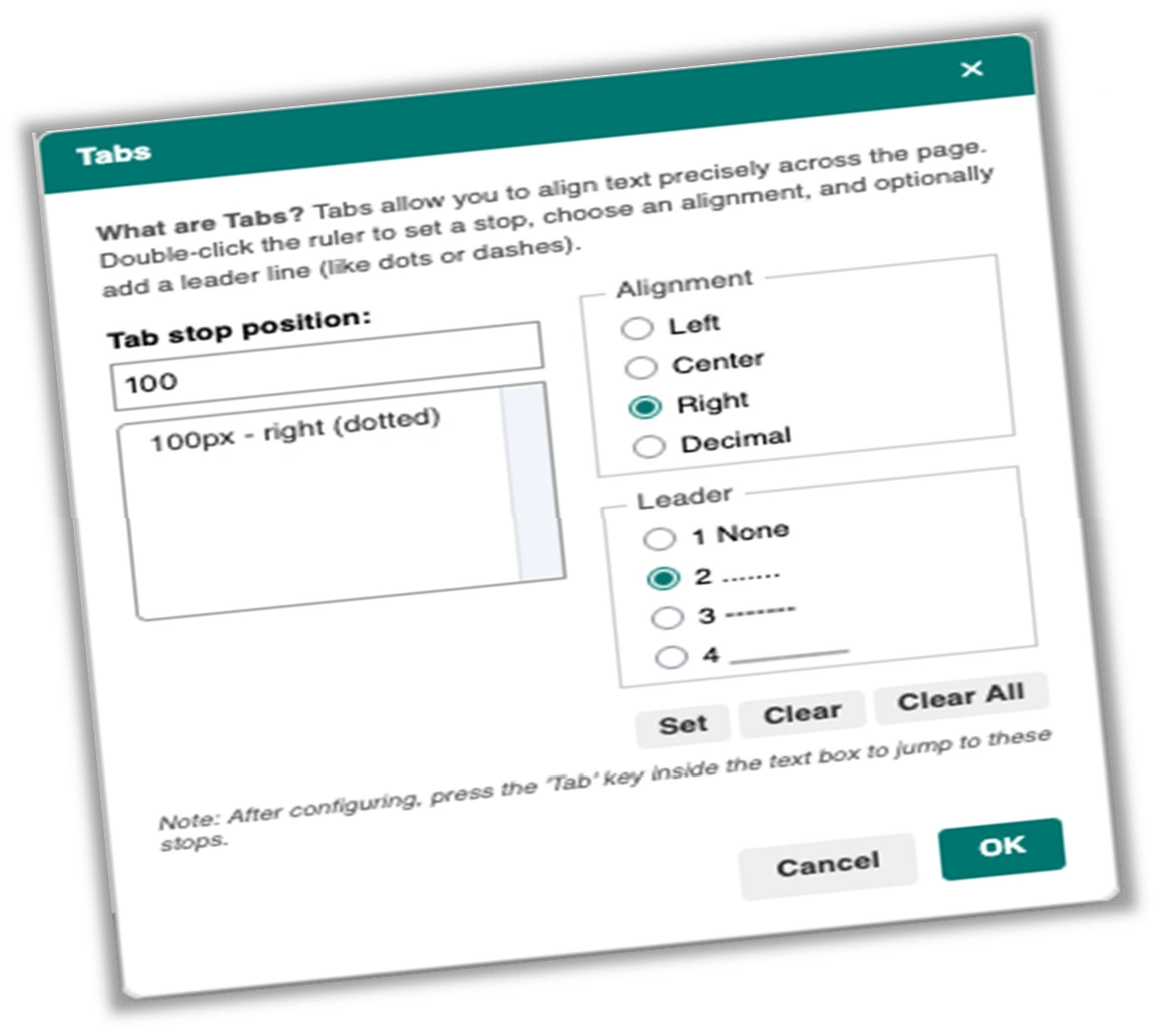
-
Select a text box and click inside it so the cursor is active.
-
Double-click anywhere on the top horizontal ruler to open the Tabs dialog.
-
In the dialog, enter a position value (in pixels or mm).
-
Choose a TabAlignment:
Left – text flows rightward from the tab stop (standard).
Center – text centres itself over the tab stop position.
Right – text pushes leftward and aligns flush to the right of the stop. Ideal for prices.
Decimal – similar to Right, for numerical column alignment. -
Choose a TabLeader:
None – a plain blank space.
Dotted() – classic TOC dot leaders.
Dashed() – a dashed connecting line.
Solid() – a solid underline leader. -
Click Set, then OK.
Example: Type “Menu Item 1”, press Tab, then type “$15.00”. With a right-aligned dotted tab stop at position 300, the price right-aligns at 300px while a dotted leader line fills the gap automatically.
Tab leader lines are fully PDF and print safe – the print engine automatically converts CSS gradient leaders into real characters just before capture, ensuring they appear correctly in exported documents.
Note: If you press Tab in a text box that has no explicit tab stops configured, Open Publisher inserts a standard 4-space indentation (like a word processor), so normal text flow is preserved. Tab leader lines are fully PDF and print safe.
Vertical Text Alignment
You can control how text is positioned vertically within its container – pinning it to the top, centring it in the middle, or anchoring it to the bottom. This is ideal for title cards, pull quotes, sidebars, and grid layouts.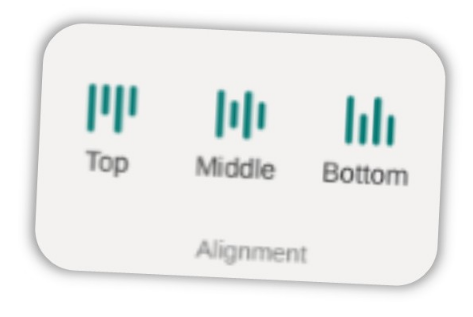
-
Select a text box.
-
In the Text Box Tools contextual ribbon, locate the Alignment group.
-
Click Top, Middle, or Bottom.
The change takes effect immediately. Under the hood, Open Publisher uses a CSS Table-Cell architecture (rather than Flexbox) to implement vertical alignment. This was a deliberate engineering choice to bypass a known WebKit/Chrome rendering bug where Flexbox text nodes can collapse their line-heights to zero in PDF and print output. The table-cell implementation guarantees perfect 1:1 pixel rendering on both screen and paper.
Text Flow Controls
Shrink Text on Overflow:
The Shrink Text on Overflow toggle, found in the Text Flow group of the Text Box Tools ribbon, automatically reduces the font size of your text if you type more content than the box can hold.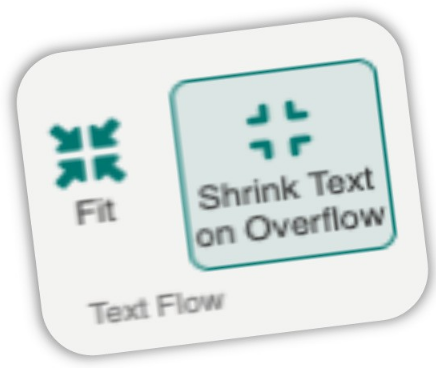
-
-
The size reduction happens live as you type and also reacts when you resize the box.
-
The original font size is remembered internally. Disabling the toggle restores the text to its original size.
-
This mode is mutually exclusive with Grow Box to Fit — enabling one automatically disables the other.
-
Grow Box to Fit:
The Grow Box to Fit toggle (also in the Text Flow group) makes the text box automatically expand downward as you type, ensuring all content remains visible without changing the font size.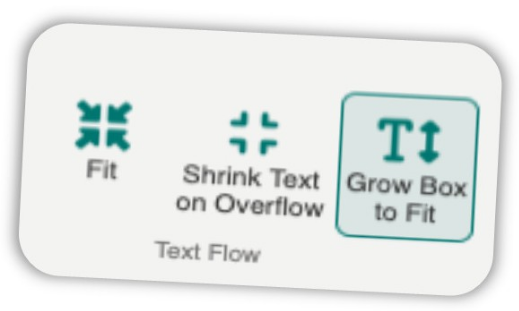
-
The box continuously monitors its content via a ResizeObserver and input event listener.
-
A minimum height of 20 pixels is enforced so small or empty boxes remain easy to interact with.
-
Grow Box to Fit and Shrink Text on Overflow are mutually exclusive. If Shrink is active when you enable Grow, Shrink is automatically disabled and the text is restored to its original font size.
-
Both states persist across save/load and undo/redo.
These two modes are mutually exclusive – enabling one automatically disables the other.
Linked Text Boxes (Story Editor)
For long-form content that flows across multiple pages – such as articles, stories, or reports – Open Publisher supports linked text boxes. When a text box overflows, you can link it to a second box on another page, and the content will flow continuously from one into the other.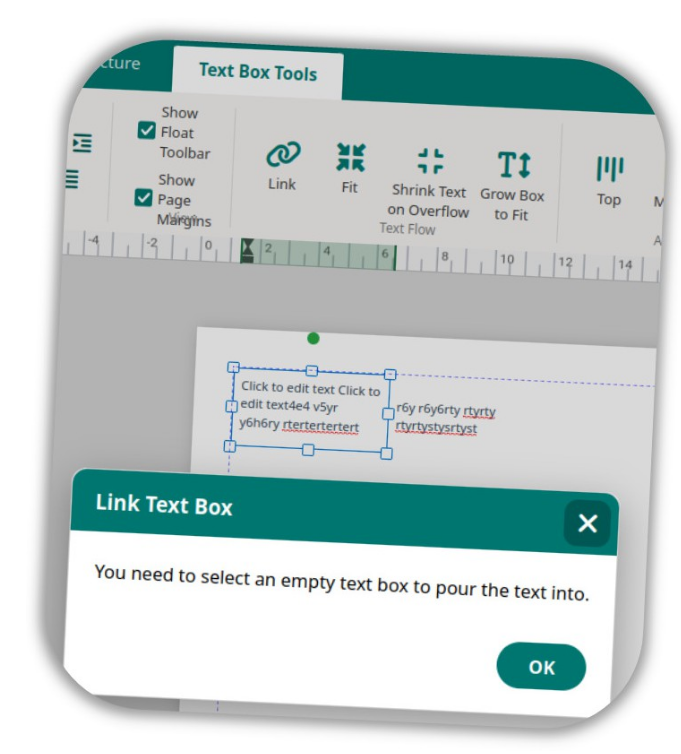
-
Insert two or more text boxes.
-
Select the first (source) text box.
-
In the Text Box Tools ribbon, click the Link button. Your cursor changes to a chain link icon.
-
Click the second text box to complete the link.
Text now flows between them automatically. Adding, editing, or deleting content in the first box causes the overflow to reflow into the linked box in real time. Links can be chained across as many text boxes as needed for multi-page articles.
